


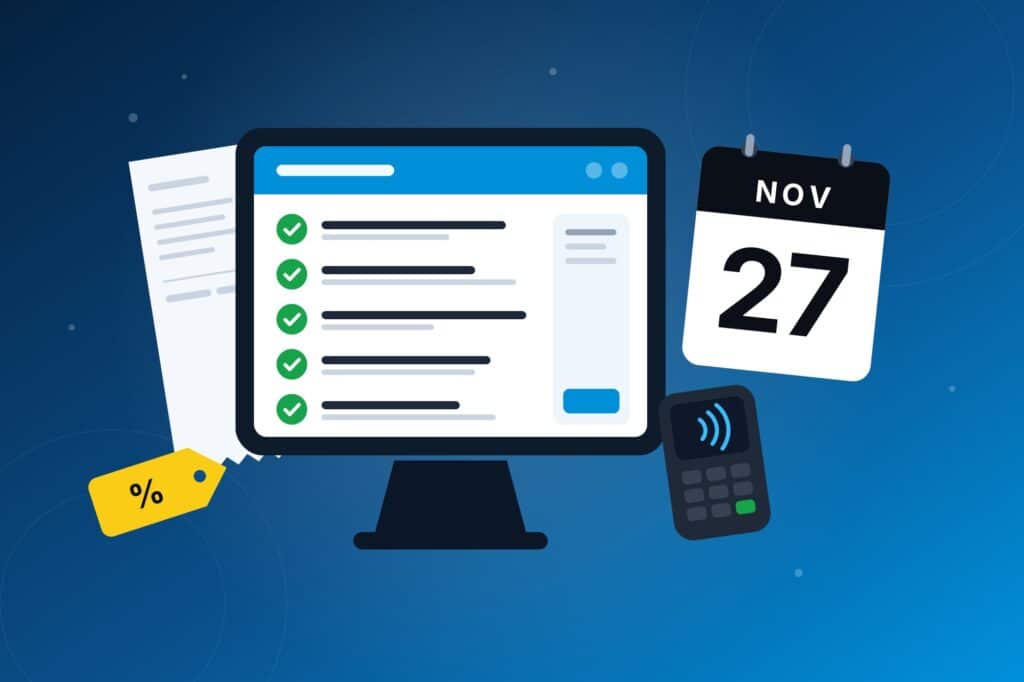
This year Black Friday falls on Friday, November 27, 2026, followed by Small Business Saturday (November 28) e Cyber Monday (November 30). For stores that sell both online and in-person, it’s the one weekend where every system gets tested at once: your website, your POS, your card readers, your Wi-Fi, and your staff.
Most peak-weekend problems aren’t caused by the busy day itself. They come from a change made in the week before it: an update applied on Thursday night, a new seasonal cashier who has never logged in, a card reader that needs a firmware update just as the queue builds. This checklist is about walking into November 27 with a setup that’s known to work.
It’s written for FooSales merchants, but almost all of it applies to any WooCommerce store selling in person.
Why timing matters more this year
WooCommerce now ships a major release roughly every five weeks. WooCommerce 11.2 arrived on October 7 (with an 11.2.1 patch on October 9), and WooCommerce has already published developer advisories for 11.3. On that schedule, 11.3 is likely to land in mid-November, around two weeks before Black Friday. Check the WooCommerce developer changelog for the confirmed date.
WooCommerce 11.3 will also start showing notices to stores running older PHP versions, because WooCommerce 11.6 (planned for January 2027) will require PHP 8.1 or newer. Neither change is a problem in itself, but a major release plus a hosting change in the same fortnight as your biggest trading weekend is a business risk you don’t need to take.
Suggested timeline at a glance
| When | What to do |
|---|---|
| Now – Nov 6 | Update to the latest stable WooCommerce 11.2.x, FooSales plugin, and FooSales apps. Check HPOS, PHP version, backups, and hosting. |
| Nov 9 – 13 | Catalog and stock prep: holiday SKUs, barcodes, sale prices, coupons. Card reader firmware and hardware tests. |
| Nov 16 – 20 | Staff roles, PINs, and training. Run an offline-mode drill. Start your update freeze. |
| Nov 23 – 26 | Final stock count, cash float, consumables. No changes to plugins, themes, or hosting. |
| Nov 27 – 30 | Opening checklist each morning, reconciliation each night. |
| Early December | Lift the freeze. Apply held updates on staging first, then production. |
1. Decide your update plan, then freeze
The goal is to be on a recent, tested version well before peak week, and then stop changing things.
- Update now not later. Get WooCommerce onto the latest 11.2.x release, update the FooSales plugin, and update the FooSales apps on every register device. Check the FooSales changelog to confirm the plugin has been tested with your WooCommerce version.
- Treat WooCommerce 11.3 as optional before Black Friday. If it lands in mid-November, you can safely stay on 11.2.x through the weekend. If you do want 11.3, wait for the first patch release (11.3.1), test it on a staging copy of your store with real POS transactions, and only then update production.
- Test on staging with the POS connected. Most hosts offer one-click staging. Connect a FooSales device to the staging site and ring up a few sales, a refund, and a coupon before trusting an update.
- Pause automatic updates. Turn off auto-updates for WooCommerce, plugins, and your theme until early December. On the iPads and Android devices that you use for tills/registers, consider pausing automatic app updates too, once you’re on the latest FooSales app, so nothing changes mid-shift.
- The one exception: security releases. If a security fix is released during your freeze, read the release notes and apply it. Patch releases (x.x.1, x.x.2) are small and targeted, major releases are not.
2. Check the platform powering your POS
Your POS is only as fast and reliable as the WordPress site it talks to. On Black Friday, online shoppers and in-store registers share the same server.
- Confirm your HPOS status. Ir para WooCommerce > Definições > Advanced > Características in your WP Admin Dashboard and note which order storage you’re using and whether compatibility mode (sync) is on. Since WooCommerce 10.7, “sync on read” is disabled by default, so any older plugin that still reads orders from the legacy tables may show stale data. If you haven’t migrated yet, don’t do it now; use our HPOS migration checklist in December instead.
- Check your PHP version. Find it under Tools > Site Health > Informações > Servidor. If you’re below PHP 8.1, plan the upgrade with your host for December or early January. Changing PHP versions the week before Black Friday isn’t worth the risk. Separately, ask your host whether they’ve applied the latest PHP security updates.
- Test a restore not just a backup. Confirm when your last backup ran, where it’s stored, and how long a restore would take. A backup you’ve never restored is a hope, not a plan.
- Talk to your host about peak traffic. Ask whether your plan can handle a spike and whether they need advance notice of a big promotion.
- Check caching and security plugins. Make sure page caching, CDN rules, and firewall or rate-limiting settings aren’t caching or blocking the requests your POS devices make to your store. A firewall that throttles “too many requests” can be triggered by a busy register on a busy day.
3. Get your catalog and stock ready

FooSales uses your WooCommerce products, prices, stock, and coupons directly, so prep done in WooCommerce shows up at the register automatically.
- Add holiday products early, including gift sets and bundles, so staff can find them before the rush.
- Give every new product a SKU and barcode, and test-scan them at the register. Print barcode labels in advance rather than on the day.
- Schedule sale prices in WooCommerce using the sale price dates on each product, so they start and end automatically. Then check a few on the POS to make sure they appear as expected.
- Create Black Friday coupons with limits (start and end dates, usage limits, minimum spend) and test each one at the register as well as online.
- Offer gift wrapping or personalization as product add-ons if you use the WooCommerce Product Add-Ons integration, so it’s captured on the order rather than on a sticky note.
- Do a stock count before peak week. Overselling usually starts with stock levels that were already wrong. Fix discrepancies in WooCommerce before November 23.
4. Test payments and hardware

- Update card reader firmware now. Stripe and Square readers often need firmware updates that take several minutes. You want that to happen on a quiet Tuesday, not as you open on Friday.
- Run a real low-value transaction on each reader, then refund it, so you know the full payment and refund flow works end to end.
- Have a back-up payment method. A spare card reader, Tap to Pay as a fallback, or at minimum a clear plan for cash.
- Test every peripheral: receipt printers, cash drawers, barcode scanners, and label printers. Stock up on receipt paper and labels. See our hardware suportado list if anything needs replacing.
- Plan your network. If you can, put registers on their own Wi-Fi network, separate from guest Wi-Fi, and keep a mobile hotspot charged as a back-up connection.
- Charge everything and label the chargers. Tablets, phones, readers, and hotspots all run down faster on a long trading day.
5. Run an offline-mode drill
FooSales switches to modo offline automatically if your internet connection drops, and syncs changes back to WooCommerce when you’re reconnected. The time to see this in action is during a quiet hour, not during a power-cut queue.
- On one register, turn on offline mode manually from the app settings.
- Ring up a couple of test sales using the payment methods you’d actually use offline (usually cash).
- Turn offline mode off and confirm the orders appear in WooCommerce with the right stock adjustments.
- Make sure at least one person on every shift knows where the export offline orders option is in the app settings. It’s your safety net if an automatic sync ever fails, and the export can be imported via the FooSales import tool in your WordPress dashboard. The offline mode help article walks through both steps.
- On one register, turn on offline mode manually from the app settings.
6. Set up seasonal staff properly

Extra hands are essential over the holidays, but sharing one login for five people makes it impossible to trace mistakes. Since FooSales plugin version 1.43.0, you can control exactly who can use the POS and which features they can access. See the user roles, permissions and PIN security announcement for the full details.
- Give every staff member their own user. Each order records the POS user who submitted it as the cashier, which makes end-of-day questions much easier to answer.
- Create a “Seasonal Cashier” role. In the FooSales plugin settings, under the Utilizadores tab, copy the existing Cashier role and uncheck any POS capabilities temporary staff don’t need.
- Turn on PIN lock and auto-lock. Each user gets a 4-digit PIN, and an auto-lock timeout stops an unattended register from being used by the wrong person.
- Practice shift changes. Staff can use Switch User instead of logging the whole register out and back in, which keeps the queue moving at handover.
- Run a 15-minute training session covering a sale, a split payment, a coupon, a refund, and what to do if the connection drops. A one-page cheat sheet by each register helps more than a long manual.
- Plan the off-boarding. Set a reminder for who needs their access removed in January.
7. On the day: WooCommerce Black Friday 5 minute opening routine
- Devices and readers charged, apps open and connected to the store.
- Card readers paired and showing as connected.
- Receipt printer loaded and test-printed; cash drawer opens.
- Cash float counted and recorded.
- Each staff member has signed in once with their PIN.
- Backup hotspot charged and within reach.
- Someone knows who to call (host, payment provider, FooSales support) and has the correct details.
8. After close: reconcile every night
Small mismatches are easy to fix on the night and much harder to unpick a week later.
- Match payments by method. Compare cash counted against cash orders, and card orders in FooSales against your Stripe or Square dashboard.
- Check for anything still offline. Make sure every register has synced before the devices go on charge for the night.
- Review refunds and discounts by cashier to catch training issues early.
- Spot-check stock on your top sellers so Saturday and Cyber Monday don’t start with oversold items.
After the weekend: lift the freeze carefully
In early December, apply the updates you held back (WooCommerce, plugins, apps etc) on staging first, then production. December is also the right time for the bigger jobs you postponed: the PHP 8.1 upgrade ahead of WooCommerce 11.6, and an Migração HPOS if you haven’t done one yet. Your stores will hopefully be busy again soon for Christmas, so aim to finish these by mid-December.
FAQ
Q. Should I update WooCommerce before Black Friday?
A. Yes, but early. Update to the latest stable release at least two to three weeks before Black Friday, test it with your POS, and then freeze. Avoid installing a brand-new major release in the final two weeks unless it fixes a problem you actually have.
Q. When should a WooCommerce update freeze start?
A. For Black Friday on November 27, 2026, a freeze starting around November 16–20 gives you time to test and fix issues while leaving a quiet buffer before peak week. Apply only security patches during the freeze.
Q. What happens if the internet goes down during a sale?
A. FooSales switches to offline mode automatically, so you can keep selling and the orders sync to WooCommerce when the connection returns. Card payments depend on your payment provider and reader, so plan for cash or a backup connection as well.
Q. Do I need to migrate to HPOS before Black Friday?
A. No. If your store is stable on its current order storage, leave it alone until after peak season. Just confirm which mode you’re using and that your plugins are compatible with it.
Q. Does WooCommerce 11.3 require PHP 8.1?
A. No. WooCommerce 11.3 starts showing a notice on older PHP versions; the PHP 8.1 requirement is planned for WooCommerce 11.6 in January 2027. Schedule the upgrade with your host after the Black Friday weekend.
Have a question about your setup before the rush? Our Centro de ajuda covers every feature mentioned here, and the support team is happy to help. Just entrar em contacto early, while there’s still time to make changes calmly. If you’re not a FooSales customer yet, now is a good time to start your 7-day free trial.
 English
 German
 Dutch
Dutch Spanish
 Italian
 Portuguese
 French
 Polish
 Greek
Greek