


Les burgers sont personnels. Extra bacon, pas d'oignons, suisse au lieu de cheddar, et si vous donnez le choix à vos clients, la plupart diront oui aux frites et à une boisson si vous leur facilitez la tâche. Notre intégration avec le plugin WooCommerce Product Add-Ons rend ce niveau de personnalisation facile pour les commandes en ligne et en personne.
Comment le système de commande d'un restaurant de burgers fonctionne-t-il avec FooSales et WooCommerce ?
Le système de commande permet aux clients de passer des commandes en ligne ou en personne. En utilisant WordPress, WooCommerce et FooSales, il comprend :
- Vitrine en ligne: Les clients consultent un menu de produits en ligne, ajoutent des hamburgers à un panier et personnalisent les garnitures (par exemple, plus de fromage, pas d'oignons) à l'aide de l'interface utilisateur. WooCommerce Compléments d'information extension. Le système assure le suivi des articles et calcule les coûts.
- Compte d'utilisateur ou Guest Checkout: Les clients créent un compte pour sauvegarder l'historique de leurs commandes et leurs préférences, ou utilisent la caisse des invités pour plus de commodité.
- Choix de la livraison ou de l'enlèvement: Les clients choisissent la livraison à une adresse ou le retrait en magasin.
- Traitement des paiements: Les passerelles de paiement sécurisé gèrent les cartes de crédit/débit, les portefeuilles numériques (par exemple, PayPal) ou le paiement à la livraison.
- Confirmation de commande: Après le paiement, les clients reçoivent un courriel ou une notification avec les détails de la commande et l'heure estimée d'enlèvement/de livraison.
- Gestion des commandes: Les commandes sont envoyées au back-end WooCommerce du restaurant et sont également chargées dans FooSales pour que le personnel puisse les traiter.
- Exécution des commandes: Le personnel de cuisine prépare les commandes et les chauffeurs-livreurs sont affectés aux commandes de livraison.
- Suivi des commandes: Les clients peuvent suivre en temps réel l'état de leur commande (par exemple, en préparation, prête ou prête à être livrée).
- Livraison ou enlèvement: Les commandes sont livrées à l'adresse indiquée ou retirées au restaurant.
- Historique des commandes et gestion des comptes: Les clients accèdent aux commandes passées et gèrent les paramètres de leur compte.
- Analyses et rapports: Le système fournit des données pour la gestion des stocks, le suivi des ventes et l'amélioration des services.
Mise en place du système de commande de votre restaurant de burgers
Ce guide utilise WordPress, WooCommerce, FooSaleset le WooCommerce Compléments d'information afin de créer un système de commande rentable. WooCommerce, une plateforme de commerce électronique WordPress, gère les commandes en ligne, tandis que FooSales intègre les commandes en personne et en ligne via un système POS. L'extension WooCommerce Product Add-Ons permet de personnaliser les garnitures des hamburgers. Voici comment l'installer :
1. Premiers pas avec WordPress et WooCommerce
Si vous ne connaissez pas encore WordPress ou WooCommerce, suivez les instructions suivantes guide pour configurer votre site en quelques étapes simples. Une fois que votre site est prêt, passez à la section suivante.
2. Créer des produits

Chaque élément du menu, tel qu'un cheeseburger ou des frites, est ajouté en tant que produit WooCommerce. Pour organiser votre menu, créez des catégories de produits :
- Aller à Produits > Catégories dans le tableau de bord WordPress
- Cliquez sur Ajouter un nouveau pour créer des catégories telles que “Burgers”, “Sides” et “Drinks”.”
Ensuite, ajoutez des produits :
- Naviguez jusqu'à Produits > Ajouter un nouveau produit dans le tableau de bord d'administration de WooCommerce.
- Saisir le Titre (par exemple, “Classic Cheeseburger”), Description longue (par exemple, les détails du hamburger), Données sur le produit (par exemple, le prix), Brève description, Catégories de produitset Image du produit.
- Cliquez sur Publier pour ajouter le produit. Répétez l'opération pour tous les éléments du menu.
3. Configurer les modules complémentaires du produit WooCommerce
Pour permettre la personnalisation des garnitures de hamburgers, installez le module WooCommerce Extension des produits complémentaires (compatible avec la version web de FooSales). Cela permet aux clients de personnaliser leurs hamburgers.

Créer un Compléments globaux pour les garnitures de votre hamburger et l'assigner à l'élément Burgers catégorie de produits. Ainsi, les mêmes options de garniture (par exemple, fromage supplémentaire, jalapeños, bacon) apparaissent automatiquement sur chaque produit burger sans que vous ayez à configurer chacune d'entre elles. C'est le moyen le plus rapide de garder votre menu cohérent et de mettre à jour les prix ou les choix en un seul endroit.

Si un hamburger spécifique nécessite des options uniques, ajoutez un Compléments par produit sur ce produit. Utilisez-le pour ajouter ou affiner des choix uniquement pour cet article - par exemple, une liste de cases à cocher “Exclure les garnitures pour ce hamburger” pour supprimer les ingrédients fournis en standard sur ce produit. Les compléments globaux et par produit fonctionnent ensemble, ce qui vous permet de couvrir l'ensemble de la catégorie et d'exercer un contrôle précis là où vous en avez besoin.
WooCommerce Product Add-Ons permet d'importer et d'exporter des modules complémentaires globaux via des fichiers JSON. Cette fonction est particulièrement utile pour tester ou reproduire les configurations des modules complémentaires dans les différents magasins. Vous trouverez ci-dessous deux exemples de fichiers JSON que vous pouvez utiliser pour configurer les garnitures standard des hamburgers et les modifier pour votre magasin :
[ { "name" : "Bun", "title_format" : "label", "description_enable" : 0, "description" : "", "placeholder_enable" : 0, "placeholder" : "", "type" : "multiple_choice", "display" : "radiobutton", "position" : 0, "required" : 1, "restrictions" : 0, "restrictions_type" : "any_text", "adjust_price" : 0, "price_type" : "flat_fee", "price" : "", "id" : "1757422001", "min" : 0, "max" : 0, "default" : 0, "options" : [ {"label" : "Standard", "price" : "", "image" : "", "price_type" : "flat_fee", "visibility" : 1 }, { "label" : "Sésame", "prix" : "", "image" : "", "price_type" : "flat_fee", "visibility" : 1 }, { "label" : "Brioche", "prix" : "5", "image" : "", "price_type" : "flat_fee", "visibility" : 1 }, { "label" : "Sans gluten", "prix" : "10", "image" : "", "price_type" : "flat_fee", "visibility" : 1 }, {"label" : "Enveloppe de laitue (sans pain)", "prix" : "", "image" : "", "price_type" : "flat_fee", "visibility" : 1 } ] }, { "name" : "Patty Size", "title_format" : "label", "description_enable" : 0, "description" : "", "placeholder_enable" : 0, "placeholder" : "", "type" : "multiple_choice", "display" : "radiobutton", "position" : 1, "required" : 1, "restrictions" : 0, "restrictions_type" : "any_text", "adjust_price" : 0, "price_type" : "flat_fee", "price" : "", "id" : "1757422002", "min" : 0, "max" : 0, "default" : 0, "options" : [ {"label" : "Patte unique", "prix" : "", "image" : "", "price_type" : "flat_fee", "visibility" : 1 }, { "label" : "Double Patty", "price" : "35", "image" : "", "price_type" : "flat_fee", "visibility" : 1 }, { "label" : "Triple Patty", "prix" : "70", "image" : "", "price_type" : "flat_fee", "visibility" : 1 } ] }, { "name" : "Doneness" (degré de cuisson), "title_format" (format de titre) : "label", "description_enable" : 0, "description" : "", "placeholder_enable" : 0, "placeholder" : "", "type" : "multiple_choice", "display" : "radiobutton", "position" : 2, "required" : 1, "restrictions" : 0, "restrictions_type" : "any_text", "adjust_price" : 0, "price_type" : "flat_fee", "price" : "", "id" : "1757422003", "min" : 0, "max" : 0, "default" : 0, "options" : [ {"label" : "Rare", "price" : "", "image" : "", "price_type" : "flat_fee", "visibility" : 1 }, { "label" : "Medium Rare", "price" : "", "image" : "", "price_type" : "flat_fee", "visibility" : 1 }, { "label" : "Moyen", "prix" : "", "image" : "", "price_type" : "flat_fee", "visibility" : 1 }, { "label" : "Puits moyen", "prix" : "", "image" : "", "price_type" : "flat_fee", "visibility" : 1 }, { "label" : "Bien fait", "prix" : "", "image" : "", "price_type" : "flat_fee", "visibility" : 1 } ] }, { "name" : "Cheese", "title_format" : "label", "description_enable" : 0, "description" : "", "placeholder_enable" : 0, "placeholder" : "", "type" : "multiple_choice", "display" : "radiobutton", "position" : 3, "required" : 1, "restrictions" : 0, "restrictions_type" : "any_text", "adjust_price" : 0, "price_type" : "flat_fee", "price" : "", "id" : "1757422004", "min" : 0, "max" : 0, "default" : 0, "options" : [ {"label" : "No Cheese", "price" : "", "image" : "", "price_type" : "flat_fee", "visibility" : 1 }, { "label" : "Cheddar", "prix" : "10", "image" : "", "price_type" : "flat_fee", "visibility" : 1 }, {"label" : "Suisse", "prix" : "12", "image" : "", "price_type" : "flat_fee", "visibility" : 1 }, { "label" : "Américain", "prix" : "8", "image" : "", "price_type" : "flat_fee", "visibility" : 1 }, { "label" : "Fromage bleu", "prix" : "15", "image" : "", "price_type" : "flat_fee", "visibility" : 1 } ] }, { "name" : "Garnitures extra viande", "title_format" : "label", "description_enable" : 0, "description" : "", "placeholder_enable" : 0, "placeholder" : "", "type" : "checkbox", "display" : "select", "position" : 4, "required" : 0, "restrictions" : 0, "restrictions_type" : "any_text", "adjust_price" : 0, "price_type" : "flat_fee", "price" : "", "id" : "1757422005", "min" : 0, "max" : 0, "default" : "", "options" : [ {"label" : "Bacon croustillant", "prix" : "18", "image" : "", "price_type" : "flat_fee", "visibility" : 1 }, { "label" : "Œuf au plat", "prix" : "12", "image" : "", "price_type" : "flat_fee", "visibility" : 1 }, { "label" : "Galette de bœuf supplémentaire", "prix" : "35", "image" : "", "price_type" : "flat_fee", "visibility" : 1 }, {"label" : "Bande de poulet grillé", "prix" : "20", "image" : "", "price_type" : "flat_fee", "visibility" : 1 }, { "label" : "Porc effiloché", "prix" : "22", "image" : "", "price_type" : "flat_fee", "visibility" : 1 } ] }, { "name" : "Garnitures végétariennes supplémentaires", "title_format" : "label", "description_enable" : 0, "description" : "", "placeholder_enable" : 0, "placeholder" : "", "type" : "checkbox", "display" : "select", "position" : 5, "required" : 0, "restrictions" : 0, "restrictions_type" : "any_text", "adjust_price" : 0, "price_type" : "flat_fee", "price" : "", "id" : "1757422006", "min" : 0, "max" : 0, "default" : "", "options" : [ {"label" : "Laitue", "prix" : "", "image" : "", "price_type" : "flat_fee", "visibility" : 1 }, { "label" : "Tomate", "prix" : "", "image" : "", "price_type" : "flat_fee", "visibility" : 1 }, { "label" : "Cornichons", "prix" : "", "image" : "", "price_type" : "flat_fee", "visibility" : 1 }, { "label" : "Oignons (crus)", "price" : "", "image" : "", "price_type" : "flat_fee", "visibilité" : 1 }, {"label" : "Oignons caramélisés", "prix" : "5", "image" : "", "price_type" : "flat_fee", "visibility" : 1 }, {"label" : "Jalapeños / chili", "price" : "5", "image" : "", "price_type" : "flat_fee", "visibility" : 1 }, { "label" : "Champignons", "prix" : "8", "image" : "", "price_type" : "flat_fee", "visibility" : 1 }, { "label" : "Avocat", "prix" : "18", "image" : "", "price_type" : "flat_fee", "visibility" : 1 } ] }, { "name" : "Sauces", "title_format" : "label", "description_enable" : 0, "description" : "", "placeholder_enable" : 0, "placeholder" : "", "type" : "checkbox", "display" : "select", "position" : 6, "required" : 0, "restrictions" : 0, "restrictions_type" : "any_text", "adjust_price" : 0, "price_type" : "flat_fee", "price" : "", "id" : "1757422007", "min" : 0, "max" : 0, "default" : "", "options" : [ {"label" : "Ketchup", "price" : "", "image" : "", "price_type" : "flat_fee", "visibility" : 1 }, {"label" : "Moutarde", "prix" : "", "image" : "", "price_type" : "flat_fee", "visibility" : 1 }, { "label" : "Mayonnaise", "prix" : "", "image" : "", "price_type" : "flat_fee", "visibility" : 1 }, { "label" : "Sauce barbecue", "prix" : "5", "image" : "", "price_type" : "flat_fee", "visibility" : 1 }, { "label" : "Aioli à l'ail", "prix" : "5", "image" : "", "price_type" : "flat_fee", "visibility" : 1 }, {"label" : "Peri-Peri", "prix" : "5", "image" : "", "price_type" : "flat_fee", "visibility" : 1 } ] }, { "name" : "Extras", "title_format" : "label", "description_enable" : 0, "description" : "", "placeholder_enable" : 0, "placeholder" : "", "type" : "checkbox", "display" : "select", "position" : 7, "required" : 0, "restrictions" : 0, "restrictions_type" : "any_text", "adjust_price" : 0, "price_type" : "flat_fee", "price" : "", "id" : "1757422008", "min" : 0, "max" : 0, "default" : "", "options" : [ {"label" : "Tranche de fromage supplémentaire", "price" : "15", "image" : "", "price_type" : "flat_fee", "visibility" : 1 }, {"label" : "Extra pickles", "price" : "3", "image" : "", "price_type" : "flat_fee", "visibility" : 1 }, { "label" : "Sauce supplémentaire", "prix" : "3", "image" : "", "price_type" : "flat_fee", "visibility" : 1 } ] }, { "name" : "Exclusions (Supprimer)", "title_format" : "label", "description_enable" : 0, "description" : "", "placeholder_enable" : 0, "placeholder" : "", "type" : "checkbox", "display" : "select", "position" : 8, "required" : 0, "restrictions" : 0, "restrictions_type" : "any_text", "adjust_price" : 0, "price_type" : "flat_fee", "price" : "", "id" : "1757422009", "min" : 0, "max" : 0, "default" : "", "options" : [ {"label" : "Pas de laitue", "prix" : "", "image" : "", "price_type" : "flat_fee", "visibility" : 1 }, {"label" : "Pas de tomate", "prix" : "", "image" : "", "price_type" : "flat_fee", "visibility" : 1 }, { "label" : "Pas d'oignons", "prix" : "", "image" : "", "price_type" : "flat_fee", "visibility" : 1 }, { "label" : "Pas de cornichons", "prix" : "", "image" : "", "price_type" : "flat_fee", "visibility" : 1 }, { "label" : "Pas de sauce", "prix" : "", "image" : "", "price_type" : "flat_fee", "visibility" : 1 } ] } ]
4. Activer les options d'enlèvement et de livraison
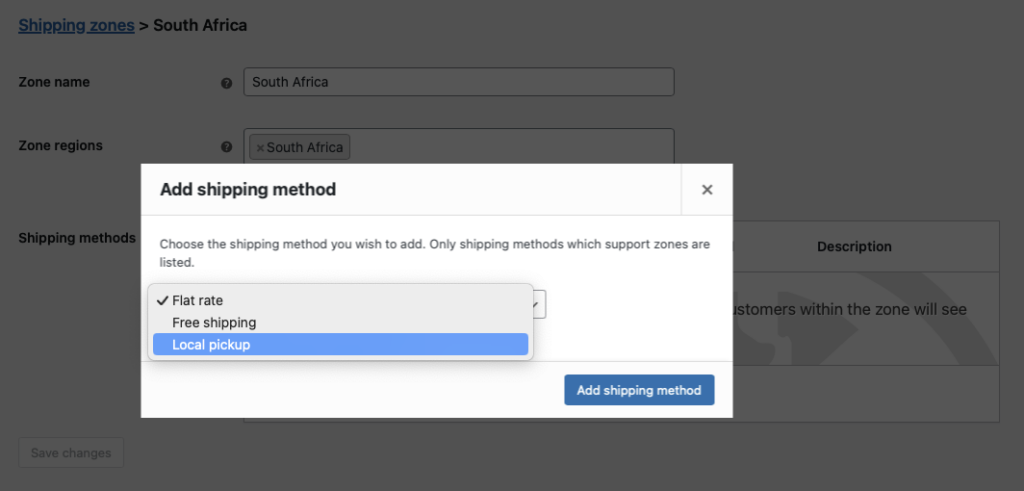
Permettre aux clients de choisir l'enlèvement ou la livraison au moment du paiement en utilisant les méthodes d'expédition WooCommerce :
- Dans le tableau de bord de WordPress, allez à WooCommerce > Paramètres > Expédition et cliquez sur Ajouter une zone d'expédition.
- Saisir un Nom de la zone (par exemple, “Local Area”) et indiquez la région de votre restaurant.
- Ajouter Enlèvement local comme mode d'expédition pour les collectes en magasin.
- Pour la livraison, sélectionner Livraison gratuite ou Taux forfaitaire (par exemple, renommer Flat Rate en “Local Delivery” et fixer un tarif de $5).
5. Configuration des statuts de commande personnalisés

Suivre l'évolution des commandes avec des statuts personnalisés en utilisant un plugin gratuit de statut de commande personnalisé (par ex. Ni WooCommerce Plugin de statut de commande personnalisé). Installez-le et créez des statuts comme :
- Actif: La commande est en cours de préparation dans la cuisine.
- Prêt: La commande est prête à être enlevée ou livrée.
- Compléter: La commande est satisfaite et aucune autre action n'est nécessaire.
- Naviguez jusqu'à Statut de la commande > Ajouter un nouveau pour les mettre en place.
6. Mise en place de courriers électroniques et de SMS automatisés pour les clients (facultatif)
Ensuite, vous pouvez envoyer des mises à jour automatiques à vos clients lorsque l'état de la commande est modifié, à l'aide de la fonction Plugin AutomateWoo extension. Cette extension peut être utilisée pour faire savoir que la commande est prête à être enlevée ou qu'elle est prête à être livrée.
Lorsqu'un statut de commande est modifié, vous pouvez configurer les éléments suivants AutomateWoo enverra un courrier électronique au client. Vous pouvez configurer plusieurs courriels déclenchés par différents statuts de commande et vous pouvez également appliquer des règles supplémentaires afin que les courriels ne soient envoyés que lorsque certaines conditions sont remplies.
Voici quelques exemples des types d'automatisation que vous pouvez mettre en œuvre à l'aide de déclencheurs et de règles :
Commande en cours de préparation email
Lorsqu'une commande arrive, la cuisine la marque Actif pour indiquer que la préparation a commencé dans votre système de commande. Configurer AutomateWoo d'envoyer un courrier électronique au client pour l'informer de ce changement de statut et lui confirmer que la cuisine travaille sur sa commande. Cela permet d'établir des attentes et de tenir le client informé de l'avancement des travaux.

Commande prête à être enlevée
N'envoyez cet e-mail que pour les commandes d'enlèvement local. Dans AutomateWoo, ajoutez une règle où Commande → Mode d'expédition = Enlèvement local de sorte que le flux de travail ne se déclenche que dans ces cas.
La commande est en cours d'acheminement par courrier électronique
Envoyer ce courriel uniquement pour les commandes avec livraison. Dans AutomateWoo, ajoutez un Règle: Commande → Mode d'expédition est Taux forfaitaire OU Livraison gratuite (par exemple, “est l'un des éléments suivants : forfait, livraison gratuite”).
Courriel de remerciement
Une fois que la commande est marquée comme étant terminée, envoyez un e-mail de remerciement avec un code de réduction pour encourager les ventes répétées.
Calendrier
Dans tous les exemples ci-dessus, vous pouvez laisser l'élément Calendrier réglage à Courir immédiatement à moins que vous ne souhaitiez appliquer un léger délai qui vous donnera le temps d'annuler l'envoi d'un courrier électronique si le statut de la commande a été modifié de manière incorrecte.

Actions
Pour chaque courrier électronique, vous devrez créer un courriel ou SMS message texte.
- Dans votre flux de travail, ouvrez Actions → Ajouter une action.
- Choisir Envoyer un courriel (ou Envoyer un SMS si vous utilisez les SMS).
- Set (jeu de mots) Pour à
{{ customer.email }}Il revient donc à l'acheteur. - Remplir le Sujet et Contenu de l'e-mail (utiliser les balises de fusion si nécessaire).
- Économiser l'action.
Si vous envoyez plutôt des SMS, choisissez Envoyer un SMS et configurez le destinataire/message selon votre configuration SMS.
En voici un exemple :
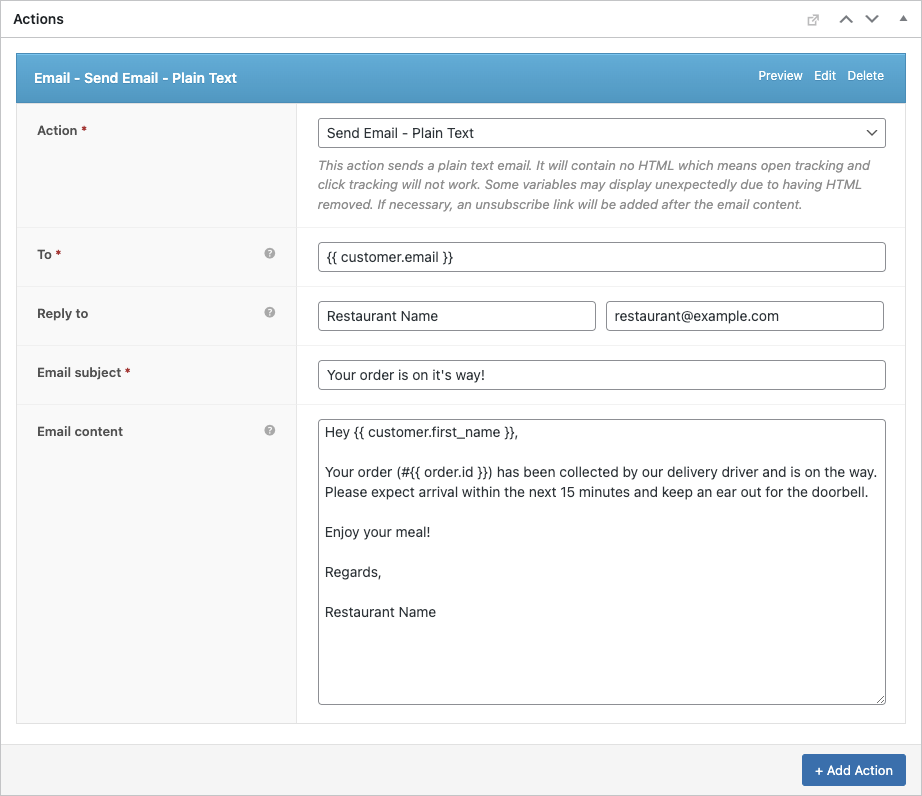
Au fil du temps, cela permettra d'économiser un nombre incalculable d'heures et de minimiser le risque d'erreur. Vous pouvez également configurer AutomateWoo pour envoyer des SMS en utilisant Twilio ce qui est une autre caractéristique importante de cette système de commande pour les restaurants.
6. Mise en place FooSales POS
FooSales fonctionnera sans aucune configuration personnalisée, mais vous devrez configurer les statuts de commande que FooSales doit charger. Ouvrir FooSales → Paramètres → Commandes et ajoutez vos statuts personnalisés sous État des commandes à charger pour qu'ils apparaissent dans les applications POS. Définir les Statut de soumission des commandes pour définir le statut appliqué à la caisse, et choisir les statuts qui comptent comme État des commandes incomplètes.

Vous pouvez également régler FooSales pour qu'il affiche alertes de commande en fonction de l'état de la commande ou de la méthode d'expédition associée à une commande. Les alertes de commande permettent au personnel d'étage ou de cuisine d'être informé des nouvelles commandes et d'y donner suite sans délai grâce à votre système de gestion des commandes. système de commande pour les restaurants.

Utilisation du système de commande de votre restaurant de burgers
Voici comment gérer les commandes en ligne et en personne avec votre système :
Commandes en ligne
- Lorsqu'un client commande en ligne un hamburger personnalisé, la commande apparaît dans FooSales POS avec une alerte.
- Affichez la commande dans le POS, y compris les détails tels que les garnitures (via les compléments de produit), l'identifiant de la commande, le statut, le mode d'expédition et le total.
- Modifier le statut en Actif pour commencer la préparation, ce qui déclenche l'envoi de l'e-mail/SMS “Commande en cours de préparation”.
- Le personnel de cuisine peut consulter les détails sur une tablette ou imprimer un bon de commande à l'aide de l'imprimante thermique FooSales’.
- Mise à jour de Prêt une fois l'opération terminée, les clients sont informés de l'enlèvement ou de la livraison de leur commande. Pour les livraisons, les chauffeurs utilisent les détails de la commande pour l'exécution.
- Régler sur Compléter une fois que le client a reçu la commande.
Commandes internes

- Utilisez FooSales pour créer des commandes en personne sur le FooSales POS.
- Recherchez des produits (par exemple, “Double Cheeseburger”) ou scannez des codes-barres, les personnalisations des garnitures étant synchronisées via les modules complémentaires de produits WooCommerce.
- Ajoutez des articles au panier, appliquez des remises ou des coupons, créez un lien vers un profil de client et sélectionnez des méthodes de paiement sur l'écran de paiement.
- Définir le statut de l'ordre sur Traitement pour avertir le personnel de cuisine.
- Les commandes sont stockées dans WooCommerce et l'inventaire est mis à jour automatiquement.
Visualisation des commandes

- Les commandes en ligne et en personne apparaissent dans le tableau de bord de WooCommerce sous Commandes et dans la section ’commandes" de FooSales.
- Utilisez les rapports WooCommerce pour l'analyse des ventes et des stocks.
Conclusion
La mise en place d'un système de commande avec WordPress, WooCommerce, FooSales et l'extension Product Add-Ons permet à votre restaurant de hamburgers de gérer efficacement les commandes en ligne et en personne. Ce système permet de rationaliser la personnalisation, d'assurer le suivi des commandes et d'améliorer la satisfaction des clients pour un coût minime. Inscrivez-vous pour un FooSales essai gratuit pour commencer et optimiser les opérations de votre restaurant.