


Burgers zijn persoonlijk. Extra spek, geen uien, Zwitserse in plaats van cheddar, en - als je je klanten een keuze geeft, zullen de meesten ja zeggen tegen friet en een drankje als je het makkelijk maakt. Onze integratie met de WooCommerce Product Add-Ons plugin maakt dit niveau van personalisatie moeiteloos voor zowel online als persoonlijke bestellingen.
Hoe werkt een Burger Restaurant Bestelsysteem met FooSales en WooCommerce?
Met het bestelsysteem kunnen klanten online of persoonlijk bestellingen plaatsen. Het maakt gebruik van WordPress, WooCommerce en FooSales:
- Online winkel: Klanten bladeren door een online productmenu, voegen hamburgers toe aan een winkelwagentje en passen de toppings aan (bijv. extra kaas, geen uien) met behulp van het WooCommerce Product Toevoegingen uitbreiding. Het systeem houdt items bij en berekent de kosten.
- Gebruikersaccount of gastkassa: Klanten maken een account aan om hun bestelgeschiedenis en voorkeuren op te slaan of gebruiken voor het gemak de gastkassa.
- Bezorgen of afhalen: Klanten kiezen voor bezorging op een adres of afhalen in de winkel.
- Verwerking van betalingen: Veilige betalingsgateways verwerken creditcards/debetkaarten, digitale portemonnees (bijv. PayPal) of rembourszendingen.
- Orderbevestiging: Na betaling ontvangen klanten een e-mail of melding met de bestelgegevens en de geschatte afhaal-/levertijd.
- Orderbeheer: Bestellingen worden verzonden naar de WooCommerce back-end van het restaurant en worden ook geladen in FooSales zodat het personeel ze kan verwerken.
- Orderverwerking: Keukenpersoneel bereidt bestellingen voor en bezorgers worden toegewezen voor bezorgopdrachten.
- Bestelling volgen: Klanten kunnen de status van hun bestelling in realtime volgen (bv. in voorbereiding, klaar of uitgeleverd).
- Bezorgen of ophalen: Bestellingen worden afgeleverd op het opgegeven adres of opgehaald in het restaurant.
- Bestelgeschiedenis en accountbeheer: Klanten hebben toegang tot eerdere bestellingen en beheren accountinstellingen.
- Analytics en rapportage: Het systeem levert gegevens voor voorraadbeheer, verkooptracking en serviceverbeteringen.
Het bestelsysteem voor je hamburgerrestaurant instellen
Deze handleiding gebruikt WordPress, WooCommerce, FooSalesen de WooCommerce Product Toevoegingen uitbreiding om een kosteneffectief bestelsysteem te creëren. WooCommerce, een WordPress e-commerce platform, handelt online bestellingen af, terwijl FooSales persoonlijke en online bestellingen integreert via een POS systeem. De WooCommerce Product Add-Ons extensie maakt aanpasbare hamburger toppings. Zo stel je het in:
1. Aan de slag met WordPress en WooCommerce
Als je nieuw bent bij WordPress of WooCommerce, volg dan dit gids om je site in een paar eenvoudige stappen op te zetten. Als je site klaar is, ga je door naar de volgende sectie.
2. Producten maken

Elk menu-item, zoals een cheeseburger of friet, wordt toegevoegd als een WooCommerce product. Maak productcategorieën om uw menu te organiseren:
- Ga naar Producten > Categorieën in het WordPress dashboard
- Klik op Nieuw toevoegen om categorieën te maken zoals “Burgers”, “Bijgerechten” en “Drankjes”.”
Voeg vervolgens producten toe:
- Navigeer naar Producten > Nieuw toevoegen in het WooCommerce admin dashboard.
- Voer de Titel (bijvoorbeeld “Klassieke cheeseburger”), Lange beschrijving (bijv. details van de hamburger), Productgegevens (bijv. prijs), Korte beschrijving, Productcategorieënen Product afbeelding.
- Klik op Publiceer om het product toe te voegen. Herhaal dit voor alle menu-items.
3. WooCommerce producttoevoegingen configureren
Om aanpasbare hamburgertoppings in te schakelen, installeer je de WooCommerce Productuitbreidingen (compatibel met de FooSales webversie). Hierdoor kunnen klanten hun burgers personaliseren.

Maak een Wereldwijde uitbreidingen instellen voor je hamburgertoppings en deze toewijzen aan de Burgers productcategorie. Op die manier verschijnen dezelfde toppingopties (bijv. extra kaas, jalapeños, bacon) automatisch op elk hamburgerproduct zonder dat je ze allemaal hoeft te configureren. Het is de snelste manier om je menu consistent te houden en prijzen of keuzes op één plek bij te werken.

Als een specifieke hamburger unieke opties nodig heeft, voeg dan een Add-ons per product groep op dat product. Gebruik het om keuzes voor dat product toe te voegen of te verfijnen, bijvoorbeeld een keuzelijst met selectievakjes voor “Exclusief toppings voor deze hamburger” om ingrediënten te verwijderen die standaard bij dat product worden geleverd. Globale add-ons en add-ons per product werken samen, dus je krijgt een brede dekking in de hele categorie plus fijnmazige controle waar je het nodig hebt.
WooCommerce Product Add-Ons ondersteunt het importeren en exporteren van wereldwijde add-ons via JSON-bestanden. Dit is vooral handig voor het testen of repliceren van add-on configuraties in verschillende winkels. Hieronder zijn twee voorbeeld JSON-bestand dat u kunt gebruiken om standaard hamburger toppings instellen en aan te passen voor uw winkel:
{ "naam": "Bun", "title_format": "label", "description_enable": 0, "description": "", "placeholder_enable": 0, "placeholder": "", "type": "multiple_choice", "display": "radiobutton", "position": 0, "required": 1, "restrictions": 0, "restrictions_type": "any_text", "adjust_price": 0, "price_type": "flat_fee", "price": "", "id": "1757422001", "min": 0, "max": 0, "standaard": 0, "opties": [ "label": "Standaard", "prijs": "", "image": "", "price_type": "flat_fee", "visibility": 1 }, {"label": "Sesame", "price": "", "image": "", "price_type": "flat_fee", "visibility": 1 }, {"label": "Brioche", "price": "5", "image": "", "price_type": "flat_fee", "visibility": 1 }, {"label": "Glutenvrij", "prijs": "10", "image": "", "price_type": "flat_fee", "visibility": 1 }, {"label": "Sla Wrap (geen broodje)", "prijs": "", "image": "", "price_type": "flat_fee", "visibility": 1 } ] } }, {"naam": "Patty Size", "title_format": "label", "description_enable": 0, "description": "", "placeholder_enable": 0, "placeholder": "", "type": "multiple_choice", "display": "radiobutton", "position": 1, "required": 1, "restrictions": 0, "restrictions_type": "any_text", "adjust_price": 0, "price_type": "flat_fee", "price": "", "id": "1757422002", "min": 0, "max": 0, "standaard": 0, "opties": [ "label": "Single Patty", "price": "", "image": "", "price_type": "flat_fee", "visibility": 1 }, {"label": "Double Patty", "price": "35", "image": "", "price_type": "flat_fee", "visibility": 1 }, {"label": "Triple Patty", "prijs": "70", "image": "", "price_type": "flat_fee", "visibility": 1 } ] } }, {"naam": "Doneness", "title_format": "label", "description_enable": 0, "description": "", "placeholder_enable": 0, "placeholder": "", "type": "multiple_choice", "display": "radiobutton", "position": 2, "required": 1, "restrictions": 0, "restrictions_type": "any_text", "adjust_price": 0, "price_type": "flat_fee", "price": "", "id": "1757422003", "min": 0, "max": 0, "standaard": 0, "opties": [ "label": "Zeldzaam", "prijs": "", "image": "", "price_type": "flat_fee", "visibility": 1 }, {"label": "Medium Rare", "price": "", "image": "", "price_type": "flat_fee", "visibility": 1 }, {"label": "Medium", "prijs": "", "image": "", "price_type": "flat_fee", "visibility": 1 }, {"label": "Medium Well", "price": "", "image": "", "price_type": "flat_fee", "visibility": 1 }, {"label": "Goed gedaan", "prijs": "", "image": "", "price_type": "flat_fee", "visibility": 1 } ] ] }, {"naam": "Cheese", "title_format": "label", "description_enable": 0, "description": "", "placeholder_enable": 0, "placeholder": "", "type": "multiple_choice", "display": "radiobutton", "position": 3, "required": 1, "restrictions": 0, "restrictions_type": "any_text", "adjust_price": 0, "price_type": "flat_fee", "price": "", "id": "1757422004", "min": 0, "max": 0, "standaard": 0, "opties": [ "label": "No Cheese", "price": "", "image": "", "price_type": "flat_fee", "visibility": 1 }, {"label": "Cheddar", "price": "10", "image": "", "price_type": "flat_fee", "visibility": 1 }, {"label": "Swiss", "price": "12", "image": "", "price_type": "flat_fee", "visibility": 1 }, {"label": "American", "price": "8", "image": "", "price_type": "flat_fee", "visibility": 1 }, {"label": "Blue Cheese", "price": "15", "image": "", "price_type": "flat_fee", "visibility": 1 } ] } }, {"naam": "Extra Vlees Toppings", "title_format": "label", "description_enable": 0, "description": "", "placeholder_enable": 0, "placeholder": "", "type": "checkbox", "display": "select", "position": 4, "required": 0, "restrictions": 0, "restrictions_type": "any_text", "adjust_price": 0, "price_type": "flat_fee", "price": "", "id": "1757422005", "min": 0, "max": 0, "standaard": "", "opties": [ "label": "Krokant spek", "prijs": "18", "image": "", "price_type": "flat_fee", "visibility": 1 }, {"label": "Gebakken ei", "prijs": "12", "image": "", "price_type": "flat_fee", "visibility": 1 }, {"label": "Extra beef patty", "price": "35", "image": "", "price_type": "flat_fee", "visibility": 1 }, {"label": "Gegrilde kipreep", "prijs": "20", "image": "", "price_type": "flat_fee", "visibility": 1 }, {"label": "Pulled pork", "price": "22", "image": "", "price_type": "flat_fee", "visibility": 1 } ] } }, {"naam": "Extra Veggie Toppings", "title_format": "label", "description_enable": 0, "description": "", "placeholder_enable": 0, "placeholder": "", "type": "checkbox", "display": "select", "position": 5, "required": 0, "restrictions": 0, "restrictions_type": "any_text", "adjust_price": 0, "price_type": "flat_fee", "price": "", "id": "1757422006", "min": 0, "max": 0, "standaard": "", "opties": [ "label": "Sla", "prijs": "", "image": "", "price_type": "flat_fee", "visibility": 1 }, {"label": "Tomaat", "prijs": "", "afbeelding": "", "price_type": "flat_fee", "visibility": 1 }, {"label": "Pickles", "price": "", "image": "", "price_type": "flat_fee", "visibility": 1 }, {"label": "Uien (rauw)", "prijs": "", "image": "", "price_type": "flat_fee", "visibility": 1 }, {"label": "Gekarameliseerde uien", "prijs": "5", "image": "", "price_type": "flat_fee", "visibility": 1 }, {"label": "Jalapeños / chili", "price": "5", "image": "", "price_type": "flat_fee", "visibility": 1 }, {"label": "Champignons", "prijs": "8", "image": "", "price_type": "flat_fee", "visibility": 1 }, {"label": "Avocado", "prijs": "18", "image": "", "price_type": "flat_fee", "visibility": 1 } ] } }, {"naam": "Sauzen", "title_format": "label", "description_enable": 0, "description": "", "placeholder_enable": 0, "placeholder": "", "type": "checkbox", "display": "select", "position": 6, "required": 0, "restrictions": 0, "restrictions_type": "any_text", "adjust_price": 0, "price_type": "flat_fee", "price": "", "id": "1757422007", "min": 0, "max": 0, "standaard": "", "opties": [ "label": "Ketchup", "prijs": "", "image": "", "price_type": "flat_fee", "visibility": 1 }, {"label": "Mosterd", "prijs": "", "image": "", "price_type": "flat_fee", "visibility": 1 }, {"label": "Mayonaise", "prijs": "", "image": "", "price_type": "flat_fee", "visibility": 1 }, {"label": "BBQ saus", "prijs": "5", "image": "", "price_type": "flat_fee", "visibility": 1 }, {"label": "Knoflook aioli", "prijs": "5", "image": "", "price_type": "flat_fee", "visibility": 1 }, {"label": "Peri-Peri", "prijs": "5", "image": "", "price_type": "flat_fee", "visibility": 1 } ] } }, {"naam": "Extras", "title_format": "label", "description_enable": 0, "description": "", "placeholder_enable": 0, "placeholder": "", "type": "checkbox", "display": "select", "position": 7, "required": 0, "restrictions": 0, "restrictions_type": "any_text", "adjust_price": 0, "price_type": "flat_fee", "price": "", "id": "1757422008", "min": 0, "max": 0, "standaard": "", "opties": [ "label": "Extra plakje kaas", "prijs": "15", "image": "", "price_type": "flat_fee", "visibility": 1 }, {"label": "Extra augurken", "prijs": "3", "image": "", "price_type": "flat_fee", "visibility": 1 }, {"label": "Extra saus", "prijs": "3", "image": "", "price_type": "flat_fee", "visibility": 1 } ] } }, {"naam": "Uitsluitingen (Verwijder)", "title_format": "label", "description_enable": 0, "description": "", "placeholder_enable": 0, "placeholder": "", "type": "checkbox", "display": "select", "position": 8, "required": 0, "restrictions": 0, "restrictions_type": "any_text", "adjust_price": 0, "price_type": "flat_fee", "price": "", "id": "1757422009", "min": 0, "max": 0, "standaard": "", "opties": [ "label": "Geen sla", "prijs": "", "image": "", "price_type": "flat_fee", "visibility": 1 }, {"label": "No tomato", "price": "", "image": "", "price_type": "flat_fee", "visibility": 1 }, {"label": "Geen uien", "prijs": "", "image": "", "price_type": "flat_fee", "visibility": 1 }, {"label": "Geen augurken", "prijs": "", "image": "", "price_type": "flat_fee", "visibility": 1 }, {"label": "Geen saus", "prijs": "", "image": "", "price_type": "flat_fee", "visibility": 1 } ] } ]
4. Opties voor ophalen en afleveren inschakelen
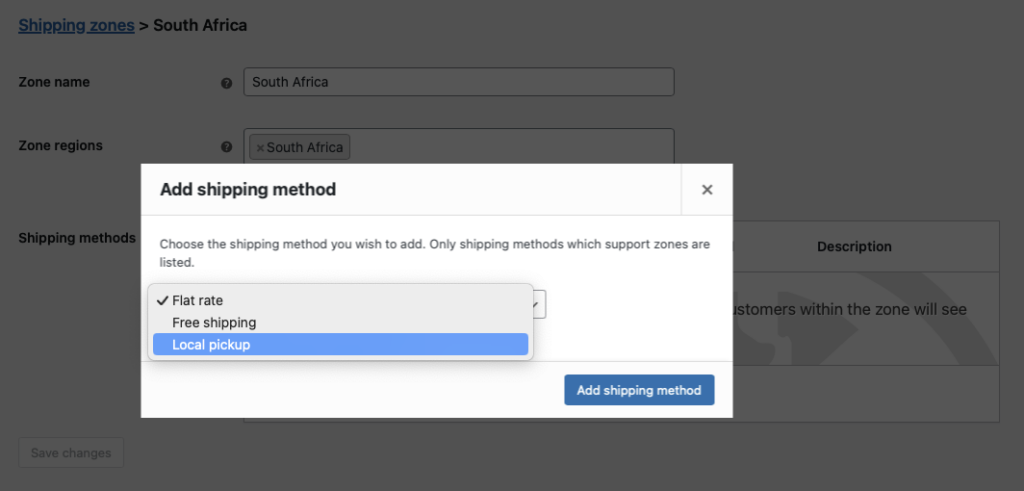
Laat klanten bij het afrekenen kiezen voor afhalen of bezorgen met behulp van WooCommerce verzendmethoden:
- Ga in het WordPress dashboard naar WooCommerce > Instellingen > Verzending en klik op Verzendzone toevoegen.
- Voer een Naam zone (bijvoorbeeld “Local Area”) en geef de regio van je restaurant op.
- Voeg toe Lokaal ophalen als verzendmethode voor afhalen in de winkel.
- Selecteer voor levering Gratis verzending of Vast tarief (bijvoorbeeld Flat Rate hernoemen naar “Lokale levering” en een tarief van $5 instellen).
5. Aangepaste bestelstatussen configureren

Volg de voortgang van bestellingen met aangepaste statussen met behulp van een gratis aangepaste plugin voor bestelstatussen (bijv. Ni WooCommerce aangepaste invoegtoepassing voor bestelstatus). Installeer het en maak statussen zoals:
- Actief: Bestelling wordt klaargemaakt in de keuken.
- Klaar: Bestelling is klaar om te worden afgehaald of bezorgd.
- Compleet: Bestelling is uitgevoerd en er is geen verdere actie nodig.
- Navigeer naar Bestelstatus > Nieuwe toevoegen om deze in te stellen.
6. Geautomatiseerde klantene-mails en SMS instellen (optioneel)
Vervolgens kunt u geautomatiseerde updates naar uw klanten sturen wanneer de bestelstatus is gewijzigd, met behulp van de optie AutomateWoo plugin extensie. Dit kan worden gebruikt om hen te laten weten dat de bestelling klaar is om te worden opgehaald of om te worden bezorgd.
Wanneer de status van een bestelling wordt gewijzigd, kunt u het volgende configureren AutomateWoo om een e-mail naar de klant te sturen. Je kunt verschillende e-mails instellen die worden getriggerd door verschillende bestelstatussen en je kunt ook extra regels toepassen zodat e-mails alleen worden verzonden als aan bepaalde voorwaarden wordt voldaan.
Hier zijn een paar voorbeelden van de soorten automatisering die je kunt implementeren met triggers en regels:
Bestelling wordt voorbereid e-mail
Wanneer een bestelling binnenkomt, markeert de keuken deze Actief om aan te geven dat de voorbereiding is gestart in uw bestelsysteem. Configureer AutomateWoo de klant een e-mail te sturen over die statuswijziging, waarin wordt bevestigd dat de keuken aan hun bestelling werkt. Dit schept verwachtingen en houdt ze op de hoogte van de voortgang.

Bestelling klaar voor afhalen e-mail
Stuur deze e-mail alleen voor bestellingen voor lokaal afhalen. Voeg in AutomateWoo een regel toe waarbij Bestel → Verzendmethode = Lokaal ophalen zodat de workflow alleen in die gevallen wordt geactiveerd.
Bestelling is onderweg per e-mail
Stuur deze e-mail alleen voor bezorgbestellingen. Voeg in AutomateWoo een Regel: Bestelling → Verzendmethode is Vast tarief OF Gratis verzending (bijv. “is een van: flat rate, gratis verzending”).
E-mail bedankt
Stuur nadat de bestelling is gemarkeerd als voltooid een bedankmail met een couponcode om herhaalverkopen te stimuleren.
Timing/planning
In alle bovenstaande voorbeelden kun je de Timing instelling op Onmiddellijk uitvoeren tenzij je een kleine vertraging wilt toepassen, zodat je tijd hebt om te annuleren dat er een e-mail wordt verzonden als de bestelstatus ten onrechte is gewijzigd.

Acties
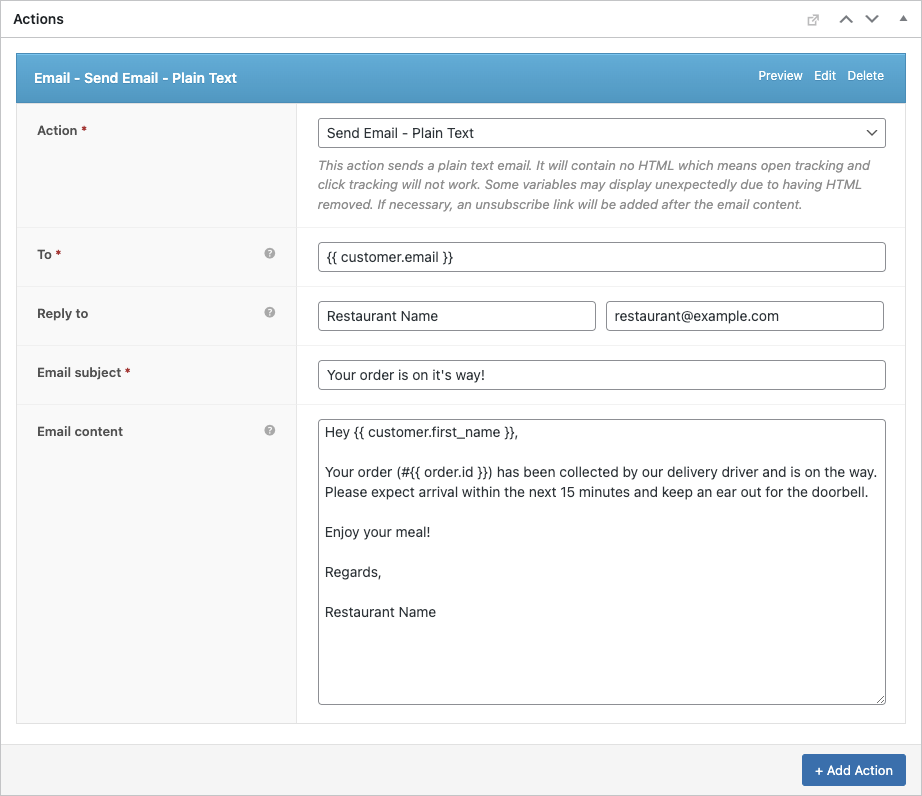
Voor elke e-mail moet je een e-mail of SMS tekstbericht.
- Open in je workflow Acties → Actie toevoegen.
- Kies Verstuur e-mail (of SMS verzenden als je SMS gebruikt).
- Stel in Naar naar
{{ customer.email }}dus het gaat naar de koper. - Vul de Onderwerp en Inhoud e-mail (gebruik waar nodig samenvoegtags).
- Sla de actie.
Als u in plaats daarvan een sms verstuurt, kiest u SMS verzenden en configureer de ontvanger/het bericht volgens uw SMS-instellingen.
Hier is een voorbeeld:
Na verloop van tijd zal dit ontelbare uren besparen en de kans op fouten minimaliseren. U kunt ook AutomateWoo om SMS'jes te versturen met Twilio wat nog een geweldige functie van deze bestelsysteem voor restaurants.
6. Instellen FooSales POS
FooSales werkt zonder aangepaste configuratie, maar je moet wel configureren welke bestelstatussen FooSales moet laden. Open FooSales → Instellingen → Bestellingen en voeg uw aangepaste statussen toe onder Te laden bestelstatussen zodat ze verschijnen in de POS apps. Stel de Bestelling indienen statussen bepalen welke status wordt toegepast bij het afrekenen en kiezen welke statussen tellen als Onvolledige bestelstatussen.

Je kunt dan FooSales ook instellen om het volgende weer te geven bestelwaarschuwingen gebaseerd op de bestelstatus of verzendmethode van een bestelling. Bestelwaarschuwingen zorgen ervoor dat het personeel op de vloer of in de keuken op de hoogte is van nieuwe bestellingen en hier onmiddellijk op kan reageren dankzij uw bestelsysteem voor restaurants.

Het bestelsysteem van uw hamburgerrestaurant gebruiken
Zo beheer je online en persoonlijke bestellingen met je systeem:
Online bestellingen
- Als een klant online een hamburger op maat bestelt, verschijnt de bestelling in FooSales POS met een melding.
- Bekijk de bestelling in de POS, inclusief details zoals toppings (via Product Add-Ons), bestel-ID, status, verzendmethode en totaal.
- Wijzig de status in Actief om de voorbereiding te starten, waardoor de e-mail/SMS “Bestelling wordt voorbereid” wordt geactiveerd.
- Keukenpersoneel kan details bekijken op een tablet of een bestelbon afdrukken met behulp van FooSales’ thermische printerondersteuning.
- Bijwerken naar Klaar Wanneer ze klaar zijn, brengen ze de klanten op de hoogte om de bestelling op te halen of af te leveren. Bij leveringen gebruiken de chauffeurs de bestelgegevens voor de afhandeling.
- Instellen op Compleet zodra de klant de bestelling heeft ontvangen.
In-huis bestellingen

- Gebruik FooSales om in-person bestellingen te maken op de FooSales POS.
- Zoek producten (bijv. “Double Cheeseburger”) of scan barcodes, met toppingaanpassingen gesynchroniseerd via WooCommerce Product Add-Ons.
- Voeg artikelen toe aan het winkelwagentje, pas kortingen of coupons toe, koppel aan een klantprofiel en selecteer betaalmethoden op het afrekenscherm.
- Stel de bestelstatus in op Verwerking om het keukenpersoneel op de hoogte te stellen.
- Bestellingen worden opgeslagen in WooCommerce en de voorraad wordt automatisch bijgewerkt.
Bestellingen bekijken

- Online en in-person bestellingen verschijnen in het WooCommerce dashboard onder Bestellingen en in de bestelsectie van FooSales.
- Gebruik WooCommerce rapporten voor verkoop- en voorraadanalyses.
Conclusie
Het opzetten van een bestelsysteem met WordPress, WooCommerce, FooSales en de uitbreiding Producttoevoegingen stelt je hamburgerrestaurant in staat om online en persoonlijke bestellingen efficiënt af te handelen. Dit systeem stroomlijnt maatwerk, volgt bestellingen, en verbetert de klanttevredenheid met minimale kosten. Aanmelden voor een FooSales gratis uitproberen om aan de slag te gaan en de werking van je restaurant te optimaliseren.