


Burgers are personal. Extra bacon, no onions, Swiss instead of cheddar, and—if you give your customers a choice, most will say yes to fries and a drink if you make it easy. Our integration with the WooCommerce Product Add-Ons plugin makes this level of personalization effortless for both online and in-person orders.
How Does a Burger Restaurant Ordering System Work with FooSales and WooCommerce?
The ordering system enables customers to place orders online or in-person. Using WordPress, WooCommerce, and FooSales, it includes:
- Tienda en línea: Customers browse an online menu of products, add burgers to a cart, and customize toppings (e.g., extra cheese, no onions) using the Complementos del producto WooCommerce extension. The system tracks items and calculates costs.
- Cuenta de usuario o Guest Checkout: Customers create an account to save order history and preferences or use guest checkout for convenience.
- Delivery or Pickup Selection: Customers choose delivery to an address or in-store pickup.
- Procesamiento de pagos: Las pasarelas de pago seguras gestionan tarjetas de crédito/débito, monederos digitales (por ejemplo, PayPal) o contra reembolso.
- Confirmación de pedido: After payment, customers receive an email or notification with order details and estimated pickup/delivery time.
- Gestión de pedidos: Orders are sent to the restaurant’s WooCommerce back-end, and are also loaded in FooSales for staff to process.
- Cumplimiento de pedidos: Kitchen staff prepare orders, and delivery drivers are assigned for delivery orders.
- Seguimiento de pedidos: Customers can track order status (e.g., preparing, ready, or out for delivery) in real-time.
- Entrega o recogida: Orders are delivered to the specified address or picked up at the restaurant.
- Historial de pedidos y gestión de cuentas: Customers access past orders and manage account settings.
- Análisis e informes: The system provides data for inventory management, sales tracking, and service improvements.
Setting Up Your Burger Restaurant Ordering System
Esta guía utiliza WordPress, WooCommerce, FooSalesy el Complementos del producto WooCommerce extension to create a cost-effective ordering system. WooCommerce, a WordPress e-commerce platform, handles online orders, while FooSales integrates in-person and online orders via a POS system. The WooCommerce Product Add-Ons extension enables customizable burger toppings. Here’s how to set it up:
1. Primeros pasos con WordPress y WooCommerce
Si eres nuevo en WordPress o WooCommerce, sigue estos pasos guía to set up your site in a few easy steps. Once your site is ready, proceed to the next section.
2. Crear productos

Each menu item, such as a cheeseburger or fries, is added as a WooCommerce product. To organize your menu, create product categories:
- Ir a Products > Categories in the WordPress dashboard
- Click Añadir nuevo to create categories like “Burgers,” “Sides,” and “Drinks.”
Next, add products:
- Vaya a Products > Add New in the WooCommerce admin dashboard.
- Enter the Título (e.g., “Classic Cheeseburger”), Descripción larga (e.g., burger details), Datos del producto (e.g., price), Short Description, Product Categoriesy Imagen del producto.
- Click Publique to add the product. Repeat for all menu items.
3. Configure WooCommerce Product Add-ons
To enable customizable burger toppings, install the WooCommerce Ampliación de productos complementarios (compatible with the FooSales web version). This allows customers to personalize their burgers.

Crear un Complementos globales set for your burger toppings and assign it to the Burgers product category. That way, the same topping options (e.g., extra cheese, jalapeños, bacon) automatically appear on every burger product without you having to configure each one. It’s the fastest way to keep your menu consistent and update prices or choices in one place.

If a specific burger needs unique options, add a Complementos por producto group on that product. Use it to add or refine choices just for that item—for example, an “Exclude toppings for this burger” checkbox list to remove ingredients that come standard on that build. Global and per-product add-ons work together, so you get broad coverage across the category plus fine-grained control where you need it.
WooCommerce Product Add-Ons supports importing and exporting global add-ons via JSON files. This is particularly useful for testing or replicating add-on configurations across stores. Below are two sample JSON file that you can use to setup standard burger toppings and modify for your store:
[ { "name": "Bun", "title_format": "label", "description_enable": 0, "description": "", "placeholder_enable": 0, "placeholder": "", "type": "multiple_choice", "display": "radiobutton", "position": 0, "required": 1, "restrictions": 0, "restrictions_type": "any_text", "adjust_price": 0, "price_type": "flat_fee", "price": "", "id": "1757422001", "min": 0, "max": 0, "default": 0, "options": [ { "label": "Standard", "price": "", "image": "", "price_type": "flat_fee", "visibility": 1 }, { "label": "Sesame", "price": "", "image": "", "price_type": "flat_fee", "visibility": 1 }, { "label": "Brioche", "price": "5", "image": "", "price_type": "flat_fee", "visibility": 1 }, { "label": "Gluten Free", "price": "10", "image": "", "price_type": "flat_fee", "visibility": 1 }, { "label": "Lettuce Wrap (no bun)", "price": "", "image": "", "price_type": "flat_fee", "visibility": 1 } ] }, { "name": "Patty Size", "title_format": "label", "description_enable": 0, "description": "", "placeholder_enable": 0, "placeholder": "", "type": "multiple_choice", "display": "radiobutton", "position": 1, "required": 1, "restrictions": 0, "restrictions_type": "any_text", "adjust_price": 0, "price_type": "flat_fee", "price": "", "id": "1757422002", "min": 0, "max": 0, "default": 0, "options": [ { "label": "Single Patty", "price": "", "image": "", "price_type": "flat_fee", "visibility": 1 }, { "label": "Double Patty", "price": "35", "image": "", "price_type": "flat_fee", "visibility": 1 }, { "label": "Triple Patty", "price": "70", "image": "", "price_type": "flat_fee", "visibility": 1 } ] }, { "name": "Doneness", "title_format": "label", "description_enable": 0, "description": "", "placeholder_enable": 0, "placeholder": "", "type": "multiple_choice", "display": "radiobutton", "position": 2, "required": 1, "restrictions": 0, "restrictions_type": "any_text", "adjust_price": 0, "price_type": "flat_fee", "price": "", "id": "1757422003", "min": 0, "max": 0, "default": 0, "options": [ { "label": "Rare", "price": "", "image": "", "price_type": "flat_fee", "visibility": 1 }, { "label": "Medium Rare", "price": "", "image": "", "price_type": "flat_fee", "visibility": 1 }, { "label": "Medium", "price": "", "image": "", "price_type": "flat_fee", "visibility": 1 }, { "label": "Medium Well", "price": "", "image": "", "price_type": "flat_fee", "visibility": 1 }, { "label": "Well Done", "price": "", "image": "", "price_type": "flat_fee", "visibility": 1 } ] }, { "name": "Cheese", "title_format": "label", "description_enable": 0, "description": "", "placeholder_enable": 0, "placeholder": "", "type": "multiple_choice", "display": "radiobutton", "position": 3, "required": 1, "restrictions": 0, "restrictions_type": "any_text", "adjust_price": 0, "price_type": "flat_fee", "price": "", "id": "1757422004", "min": 0, "max": 0, "default": 0, "options": [ { "label": "No Cheese", "price": "", "image": "", "price_type": "flat_fee", "visibility": 1 }, { "label": "Cheddar", "price": "10", "image": "", "price_type": "flat_fee", "visibility": 1 }, { "label": "Swiss", "price": "12", "image": "", "price_type": "flat_fee", "visibility": 1 }, { "label": "American", "price": "8", "image": "", "price_type": "flat_fee", "visibility": 1 }, { "label": "Blue Cheese", "price": "15", "image": "", "price_type": "flat_fee", "visibility": 1 } ] }, { "name": "Extra Meat Toppings", "title_format": "label", "description_enable": 0, "description": "", "placeholder_enable": 0, "placeholder": "", "type": "checkbox", "display": "select", "position": 4, "required": 0, "restrictions": 0, "restrictions_type": "any_text", "adjust_price": 0, "price_type": "flat_fee", "price": "", "id": "1757422005", "min": 0, "max": 0, "default": "", "options": [ { "label": "Crispy bacon", "price": "18", "image": "", "price_type": "flat_fee", "visibility": 1 }, { "label": "Fried egg", "price": "12", "image": "", "price_type": "flat_fee", "visibility": 1 }, { "label": "Extra beef patty", "price": "35", "image": "", "price_type": "flat_fee", "visibility": 1 }, { "label": "Grilled chicken strip", "price": "20", "image": "", "price_type": "flat_fee", "visibility": 1 }, { "label": "Pulled pork", "price": "22", "image": "", "price_type": "flat_fee", "visibility": 1 } ] }, { "name": "Extra Veggie Toppings", "title_format": "label", "description_enable": 0, "description": "", "placeholder_enable": 0, "placeholder": "", "type": "checkbox", "display": "select", "position": 5, "required": 0, "restrictions": 0, "restrictions_type": "any_text", "adjust_price": 0, "price_type": "flat_fee", "price": "", "id": "1757422006", "min": 0, "max": 0, "default": "", "options": [ { "label": "Lettuce", "price": "", "image": "", "price_type": "flat_fee", "visibility": 1 }, { "label": "Tomato", "price": "", "image": "", "price_type": "flat_fee", "visibility": 1 }, { "label": "Pickles", "price": "", "image": "", "price_type": "flat_fee", "visibility": 1 }, { "label": "Onions (raw)", "price": "", "image": "", "price_type": "flat_fee", "visibility": 1 }, { "label": "Caramelized onions", "price": "5", "image": "", "price_type": "flat_fee", "visibility": 1 }, { "label": "Jalapeños / chili", "price": "5", "image": "", "price_type": "flat_fee", "visibility": 1 }, { "label": "Mushrooms", "price": "8", "image": "", "price_type": "flat_fee", "visibility": 1 }, { "label": "Avocado", "price": "18", "image": "", "price_type": "flat_fee", "visibility": 1 } ] }, { "name": "Sauces", "title_format": "label", "description_enable": 0, "description": "", "placeholder_enable": 0, "placeholder": "", "type": "checkbox", "display": "select", "position": 6, "required": 0, "restrictions": 0, "restrictions_type": "any_text", "adjust_price": 0, "price_type": "flat_fee", "price": "", "id": "1757422007", "min": 0, "max": 0, "default": "", "options": [ { "label": "Ketchup", "price": "", "image": "", "price_type": "flat_fee", "visibility": 1 }, { "label": "Mustard", "price": "", "image": "", "price_type": "flat_fee", "visibility": 1 }, { "label": "Mayonnaise", "price": "", "image": "", "price_type": "flat_fee", "visibility": 1 }, { "label": "BBQ sauce", "price": "5", "image": "", "price_type": "flat_fee", "visibility": 1 }, { "label": "Garlic aioli", "price": "5", "image": "", "price_type": "flat_fee", "visibility": 1 }, { "label": "Peri-Peri", "price": "5", "image": "", "price_type": "flat_fee", "visibility": 1 } ] }, { "name": "Extras", "title_format": "label", "description_enable": 0, "description": "", "placeholder_enable": 0, "placeholder": "", "type": "checkbox", "display": "select", "position": 7, "required": 0, "restrictions": 0, "restrictions_type": "any_text", "adjust_price": 0, "price_type": "flat_fee", "price": "", "id": "1757422008", "min": 0, "max": 0, "default": "", "options": [ { "label": "Extra cheese slice", "price": "15", "image": "", "price_type": "flat_fee", "visibility": 1 }, { "label": "Extra pickles", "price": "3", "image": "", "price_type": "flat_fee", "visibility": 1 }, { "label": "Extra sauce", "price": "3", "image": "", "price_type": "flat_fee", "visibility": 1 } ] }, { "name": "Exclusions (Remove)", "title_format": "label", "description_enable": 0, "description": "", "placeholder_enable": 0, "placeholder": "", "type": "checkbox", "display": "select", "position": 8, "required": 0, "restrictions": 0, "restrictions_type": "any_text", "adjust_price": 0, "price_type": "flat_fee", "price": "", "id": "1757422009", "min": 0, "max": 0, "default": "", "options": [ { "label": "No lettuce", "price": "", "image": "", "price_type": "flat_fee", "visibility": 1 }, { "label": "No tomato", "price": "", "image": "", "price_type": "flat_fee", "visibility": 1 }, { "label": "No onions", "price": "", "image": "", "price_type": "flat_fee", "visibility": 1 }, { "label": "No pickles", "price": "", "image": "", "price_type": "flat_fee", "visibility": 1 }, { "label": "No sauce", "price": "", "image": "", "price_type": "flat_fee", "visibility": 1 } ] } ]
4. Enable Pickup and Delivery Options
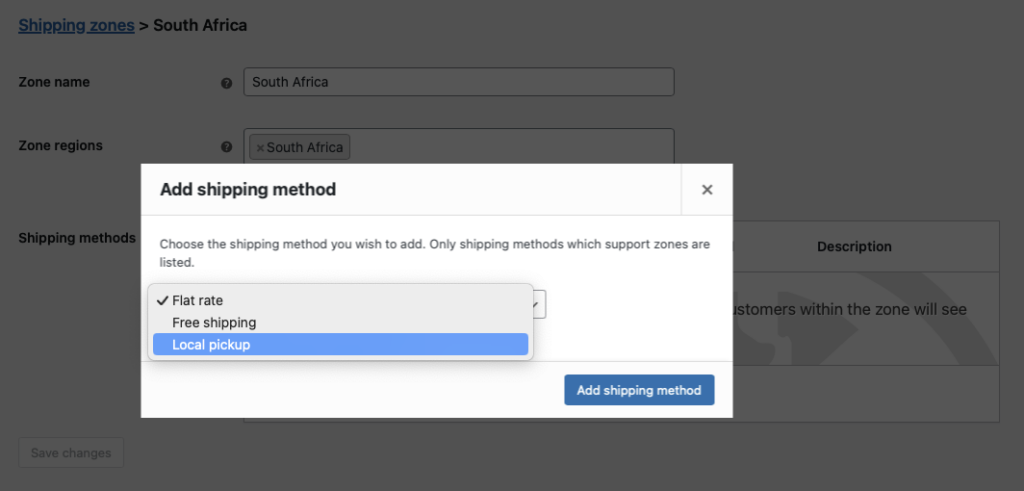
Allow customers to choose pickup or delivery at checkout using WooCommerce shipping methods:
- In the WordPress dashboard, go to WooCommerce > Settings > Shipping y haga clic en Añadir zona de envío.
- Enter a Zone Name (e.g., “Local Area”) and specify your restaurant’s region.
- Añadir Recogida local as a shipping method for in-store collection.
- For delivery, select Envío gratuito o Tarifa plana (e.g., rename Flat Rate to “Local Delivery” and set a $5 fee).
5. Configure Custom Order Statuses

Track order progress with custom statuses using a free custom order status plugin (e.g Ni WooCommerce Custom Order Status plugin). Install it and create statuses like:
- Activo: Order is being prepared in the kitchen.
- Listo: Order is ready for pickup or delivery.
- Complete: Order is fulfilled, and no further action is needed.
- Vaya a Order Status > Add New to set these up.
6. Set Up Automated Customer Emails and SMS (optional)
Next, you can send automated updates to your customers when the order status is changed, using the Plugin AutomateWoo extension. This can be used to let them know the order is ready for pickup, or out for delivery.
When an order status is changed, you can configure AutomatizarWoo enviará un correo electrónico al cliente. Puede configurar varios correos electrónicos que se activen por diferentes estados del pedido y también puede aplicar reglas adicionales para que los correos electrónicos solo se envíen cuando se cumplan determinadas condiciones.
Estos son algunos ejemplos de los tipos de automatización que puede implementar mediante activadores y reglas:
Pedido en preparación correo electrónico
When an order comes in, the kitchen marks it Activo to show preparation has started in your ordering system. Configure AutomatizarWoo to email the customer on that status change, confirming the kitchen is working on their order. This sets expectations and keeps them informed of progress.

Correo electrónico de pedido listo para su recogida
Send this email only for Local Pickup orders. In AutomateWoo, add a Rule where Order → Shipping Method = Recogida local so the workflow triggers only in those cases.
El pedido está en camino correo electrónico
Send this email only for delivery orders. In AutomateWoo, add a Regla: Order → Shipping Method es Tarifa plana O Envío gratuito (i.e., “is any of: Flat Rate, Free Shipping”).
Correo electrónico de agradecimiento
After the order is marked Complete, send a thank-you email with a coupon code to drive repeat sales.
Calendario
In all of the above examples, you can leave the Cronometraje ajuste a Corre inmediatamente a menos que desee aplicar un ligero retraso que le dé tiempo a cancelar el envío de un correo electrónico si el estado del pedido se ha modificado incorrectamente.

Acciones
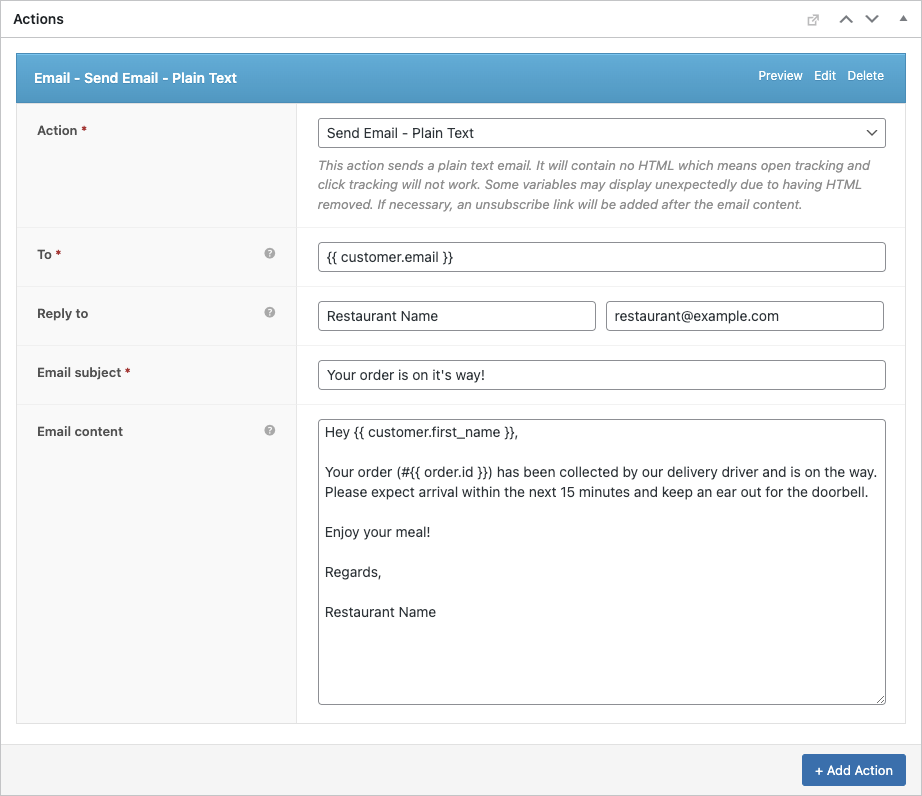
Para cada correo electrónico tendrá que configurar un correo electrónico o SMS text message.
- In your workflow, open Actions → Add action.
- Choose Enviar correo electrónico (or Send SMS if you use SMS).
- Establecer A a
{{ customer.email }}so it goes to the buyer. - Fill in the Asunto y Contenido del correo electrónico (use merge tags as needed).
- Guardar the action.
If sending SMS instead, pick Send SMS and configure the recipient/message per your SMS setup.
He aquí un ejemplo:
Con el tiempo, esto ahorrará incontables horas y minimizará el riesgo de error. También puede configurar AutomatizarWoo para enviar SMS utilizando Twilio que es otra gran característica de este sistema de pedidos de restaurantes.
6. Set Up FooSales POS
FooSales will work without any custom configuration, however you will need to configure what order statuses FooSales should load. Open FooSales → Settings → Orders and add your custom statuses under Estado de los pedidos para cargar so they appear in the POS apps. Set the Estados de envío de pedidos to define what status is applied at checkout, and choose which statuses count as Incomplete order statuses.

También puede configurar FooSales para que muestre alertas de pedido en función del estado del pedido o del método de envío asociado a un pedido. Las alertas de pedidos garantizarán que el personal de planta o de cocina esté al tanto de los nuevos pedidos y pueda actuar en consecuencia sin demora gracias a su sistema de pedidos para restaurantes.

Using Your Burger Restaurant Ordering System
Here’s how to manage online and in-person orders with your system:
Pedidos en línea
- When a customer orders a customized burger online, the order appears in FooSales POS with an alert.
- View the order in the POS, including details like toppings (via Product Add-Ons), order ID, status, shipping method, and total.
- Change the status to Activo to start preparation, triggering the “Order Being Prepared” email/SMS.
- Kitchen staff can view details on a tablet or print an order slip using FooSales’ thermal printer support.
- Update to Listo when complete, notifying customers for pickup or delivery. For deliveries, drivers use order details for fulfillment.
- Set to Complete once the customer receives the order.
In-House Orders

- Use FooSales to create in-person orders on the FooSales POS.
- Search products (e.g., “Double Cheeseburger”) or scan barcodes, with topping customizations synced via WooCommerce Product Add-Ons.
- Add items to the cart, apply discounts or coupons, link to a customer profile, and select payment methods on the checkout screen.
- Set the order status to Tratamiento to notify kitchen staff.
- Orders are stored in WooCommerce, and inventory updates automatically.
Ver pedidos

- Online and in-person orders appear in the WooCommerce dashboard under Pedidos y en la sección de pedidos de FooSales’.
- Use WooCommerce reports for sales and inventory analytics.
Conclusión
Setting up an ordering system with WordPress, WooCommerce, FooSales, and the Product Add-Ons extension equips your burger restaurant to handle online and in-person orders efficiently. This system streamlines customization, tracks orders, and enhances customer satisfaction with minimal cost. Sign up for a FooSales free trial to get started and optimize your restaurant’s operations.