


Burger sind etwas Persönliches. Extra Bacon, keine Zwiebeln, Schweizer statt Cheddar, und - wenn Sie Ihren Kunden die Wahl lassen, sagen die meisten ja zu Pommes und einem Getränk, wenn Sie es ihnen leicht machen. Unsere Integration mit dem WooCommerce Product Add-Ons Plugin macht dieses Maß an Personalisierung sowohl für Online-Bestellungen als auch für Bestellungen vor Ort mühelos möglich.
Wie funktioniert das Bestellsystem eines Burger-Restaurants mit FooSales und WooCommerce?
Das Bestellsystem ermöglicht es den Kunden, Bestellungen online oder persönlich aufzugeben. Es verwendet WordPress, WooCommerce und FooSales und umfasst:
- Online Schaufenster: Die Kunden durchstöbern ein Online-Menü mit Produkten, legen Burger in den Einkaufswagen und passen die Beläge an (z. B. extra Käse, keine Zwiebeln), indem sie die WooCommerce Produkt-Erweiterungen Erweiterung. Das System verfolgt die Artikel und berechnet die Kosten.
- Benutzerkonto oder Gast-Kasse: Kunden erstellen ein Konto, um ihre Bestellhistorie und ihre Präferenzen zu speichern, oder nutzen die Gast-Kasse für mehr Komfort.
- Auswahl Lieferung oder Abholung: Die Kunden wählen die Lieferung an eine Adresse oder die Abholung im Geschäft.
- Zahlungsabwicklung: Sichere Zahlungsgateways verarbeiten Kredit-/Debitkarten, digitale Geldbörsen (z. B. PayPal) oder Nachnahme.
- Bestätigung der Bestellung: Nach der Zahlung erhalten die Kunden eine E-Mail oder eine Benachrichtigung mit den Bestelldaten und der voraussichtlichen Abhol-/Lieferzeit.
- Auftragsverwaltung: Die Bestellungen werden an das WooCommerce-Backend des Restaurants gesendet und auch in FooSales geladen, damit das Personal sie bearbeiten kann.
- Auftragsabwicklung: Das Küchenpersonal bereitet die Bestellungen vor, und die Auslieferungsfahrer werden für die Auslieferungsaufträge eingesetzt.
- Auftragsverfolgung: Kunden können den Bestellstatus (z. B. Vorbereitung, Fertigstellung oder Auslieferung) in Echtzeit verfolgen.
- Lieferung oder Abholung: Die Bestellungen werden an die angegebene Adresse geliefert oder im Restaurant abgeholt.
- Auftragshistorie und Kontoverwaltung: Kunden können auf frühere Bestellungen zugreifen und ihre Kontoeinstellungen verwalten.
- Analytik und Berichterstattung: Das System liefert Daten für die Bestandsverwaltung, die Umsatzverfolgung und die Verbesserung des Service.
Einrichtung eines Bestellsystems für Ihr Burger-Restaurant
Dieser Leitfaden verwendet WordPress, WooCommerce, FooSalesund die WooCommerce Produkt-Erweiterungen Erweiterung, um ein kostengünstiges Bestellsystem zu schaffen. WooCommerce, eine WordPress-E-Commerce-Plattform, wickelt Online-Bestellungen ab, während FooSales persönliche und Online-Bestellungen über ein POS-System integriert. Die Erweiterung WooCommerce Product Add-Ons ermöglicht anpassbare Burger-Beläge. Hier erfahren Sie, wie Sie sie einrichten:
1. Erste Schritte mit WordPress und WooCommerce
Wenn Sie neu bei WordPress oder WooCommerce sind, folgen Sie dieser Anleitung Leitfaden um Ihre Website in ein paar einfachen Schritten einzurichten. Sobald Ihre Website fertig ist, fahren Sie mit dem nächsten Abschnitt fort.
2. Produkte erstellen

Jeder Menüpunkt, z. B. ein Cheeseburger oder Pommes frites, wird als WooCommerce-Produkt hinzugefügt. Um Ihr Menü zu organisieren, erstellen Sie Produktkategorien:
- Gehe zu Produkte > Kategorien auf dem WordPress-Dashboard
- Klicken Sie auf Neu hinzufügen um Kategorien wie “Burger”, “Beilagen” und “Getränke” zu erstellen.”
Als nächstes fügen Sie Produkte hinzu:
- Navigieren Sie zu Produkte > Neu hinzufügen in der WooCommerce-Verwaltungskonsole.
- Geben Sie die Titel (z. B. “Classic Cheeseburger”), Lange Beschreibung (z. B. Details zum Burger), Produktdaten (z.B. Preis), Kurzbeschreibung, Produkt-Kategorienund Produktbild.
- Klicken Sie auf veröffentlichen. um das Produkt hinzuzufügen. Wiederholen Sie dies für alle Menüpunkte.
3. Konfigurieren von WooCommerce-Produkt-Zusätzen
Um anpassbare Burger-Beläge zu ermöglichen, installieren Sie das WooCommerce Produkt Add-Ons Erweiterung (kompatibel mit der FooSales-Webversion). So können die Kunden ihre Burger personalisieren.

Erstellen einer Globale Add-ons für Ihre Burger-Beläge und ordnen Sie es dem Burger Produktkategorie. Auf diese Weise erscheinen dieselben Belagoptionen (z. B. zusätzlicher Käse, Jalapeños, Speck) automatisch auf jedem Burgerprodukt, ohne dass Sie jedes einzelne konfigurieren müssen. Dies ist der schnellste Weg, um Ihre Speisekarte konsistent zu halten und Preise oder Auswahlmöglichkeiten an einer Stelle zu aktualisieren.

Wenn ein bestimmter Burger besondere Optionen benötigt, fügen Sie eine Pro-Produkt-Add-ons Gruppe für dieses Produkt. Verwenden Sie sie, um Auswahlmöglichkeiten nur für diesen Artikel hinzuzufügen oder zu verfeinern, z. B. eine Checkbox-Liste “Toppings für diesen Burger ausschließen”, um Zutaten zu entfernen, die standardmäßig in diesem Build enthalten sind. Globale und produktspezifische Add-ons arbeiten zusammen, so dass Sie eine breite Abdeckung der gesamten Kategorie und eine feinkörnige Kontrolle erhalten, wo Sie sie benötigen.
WooCommerce Product Add-Ons unterstützt das Importieren und Exportieren von globalen Add-Ons über JSON-Dateien. Dies ist besonders nützlich zum Testen oder Replizieren von Add-on-Konfigurationen in verschiedenen Geschäften. Nachfolgend finden Sie zwei JSON-Beispieldateien, die Sie zum Einrichten von Standard-Burger-Zusatzprodukten und zum Ändern für Ihren Shop verwenden können:
[ { "name": "Brötchen", "title_format": "label", "description_enable": 0, "description": "", "placeholder_enable": 0, "placeholder": "", "type": "multiple_choice", "display": "radiobutton", "position": 0, "required": 1, "restrictions": 0, "restrictions_type": "any_text", "adjust_price": 0, "price_type": "flat_fee", "price": "", "id": "1757422001", "min": 0, "max": 0, "default": 0, "options": [ { "label": "Standard", "price": "", "image": "", "price_type": "flat_fee", "visibility": 1 }, { "label": "Sesam", "price": "", "image": "", "price_type": "flat_fee", "visibility": 1 }, { "label": "Brioche", "price": "5", "image": "", "price_type": "flat_fee", "visibility": 1 }, { "label": "Glutenfrei", "price": "10", "image": "", "price_type": "flat_fee", "visibility": 1 }, { "label": "Salat-Wrap (ohne Brötchen)", "price": "", "image": "", "price_type": "flat_fee", "visibility": 1 } ] }, { "name": "Patty Size", "title_format": "label", "description_enable": 0, "description": "", "placeholder_enable": 0, "placeholder": "", "type": "multiple_choice", "display": "radiobutton", "position": 1, "required": 1, "restrictions": 0, "restrictions_type": "any_text", "adjust_price": 0, "price_type": "flat_fee", "price": "", "id": "1757422002", "min": 0, "max": 0, "default": 0, "options": [ { "label": "Single Patty", "price": "", "image": "", "price_type": "flat_fee", "visibility": 1 }, { "label": "Double Patty", "price": "35", "image": "", "price_type": "flat_fee", "visibility": 1 }, { "label": "Triple Patty", "price": "70", "image": "", "price_type": "flat_fee", "visibility": 1 } ] }, { "name": "Gargrad", "title_format": "label", "description_enable": 0, "description": "", "placeholder_enable": 0, "placeholder": "", "type": "multiple_choice", "display": "radiobutton", "position": 2, "required": 1, "restrictions": 0, "restrictions_type": "any_text", "adjust_price": 0, "price_type": "flat_fee", "price": "", "id": "1757422003", "min": 0, "max": 0, "default": 0, "options": [ { "label": "Selten", "price": "", "image": "", "price_type": "flat_fee", "visibility": 1 }, { "label": "Medium Rare", "price": "", "image": "", "price_type": "flat_fee", "visibility": 1 }, { "label": "Medium", "price": "", "image": "", "price_type": "flat_fee", "visibility": 1 }, { "label": "Medium Well", "price": "", "image": "", "price_type": "flat_fee", "visibility": 1 }, { "label": "Well Done", "price": "", "image": "", "price_type": "flat_fee", "visibility": 1 } ] }, { "name": "Cheese", "title_format": "label", "description_enable": 0, "description": "", "placeholder_enable": 0, "placeholder": "", "type": "multiple_choice", "display": "radiobutton", "position": 3, "required": 1, "restrictions": 0, "restrictions_type": "any_text", "adjust_price": 0, "price_type": "flat_fee", "price": "", "id": "1757422004", "min": 0, "max": 0, "default": 0, "options": [ { "label": "No Cheese", "price": "", "image": "", "price_type": "flat_fee", "visibility": 1 }, { "label": "Cheddar", "price": "10", "image": "", "price_type": "flat_fee", "visibility": 1 }, { "label": "Swiss", "price": "12", "image": "", "price_type": "flat_fee", "visibility": 1 }, { "label": "American", "price": "8", "image": "", "price_type": "flat_fee", "visibility": 1 }, { "label": "Blue Cheese", "price": "15", "image": "", "price_type": "flat_fee", "visibility": 1 } ] }, { "name": "Extra Fleischbelag", "title_format": "label", "description_enable": 0, "description": "", "placeholder_enable": 0, "placeholder": "", "type": "checkbox", "display": "select", "position": 4, "required": 0, "restrictions": 0, "restrictions_type": "any_text", "adjust_price": 0, "price_type": "flat_fee", "price": "", "id": "1757422005", "min": 0, "max": 0, "default": "", "options": [ { "label": "Knuspriger Speck", "price": "18", "image": "", "price_type": "flat_fee", "visibility": 1 }, { "label": "Spiegelei", "price": "12", "image": "", "price_type": "flat_fee", "visibility": 1 }, { "label": "Extra Rindfleischpastete", "price": "35", "image": "", "price_type": "flat_fee", "visibility": 1 }, { "label": "Gegrillte Hähnchenstreifen", "price": "20", "image": "", "price_type": "flat_fee", "visibility": 1 }, { "label": "Pulled pork", "price": "22", "image": "", "price_type": "flat_fee", "visibility": 1 } ] }, { "name": "Extra Veggie Toppings", "title_format": "label", "description_enable": 0, "description": "", "placeholder_enable": 0, "placeholder": "", "type": "checkbox", "display": "select", "position": 5, "required": 0, "restrictions": 0, "restrictions_type": "any_text", "adjust_price": 0, "price_type": "flat_fee", "price": "", "id": "1757422006", "min": 0, "max": 0, "default": "", "options": [ { "label": "Kopfsalat", "price": "", "image": "", "price_type": "flat_fee", "visibility": 1 }, { "label": "Tomato", "price": "", "image": "", "price_type": "flat_fee", "visibility": 1 }, { "label": "Pickles", "price": "", "image": "", "price_type": "flat_fee", "visibility": 1 }, { "label": "Zwiebeln (roh)", "price": "", "image": "", "price_type": "flat_fee", "visibility": 1 }, { "label": "Karamellisierte Zwiebeln", "price": "5", "image": "", "price_type": "flat_fee", "visibility": 1 }, { "label": "Jalapeños / Chili", "price": "5", "image": "", "price_type": "flat_fee", "visibility": 1 }, { "label": "Mushrooms", "price": "8", "image": "", "price_type": "flat_fee", "visibility": 1 }, { "label": "Avocado", "price": "18", "image": "", "price_type": "flat_fee", "visibility": 1 } ] }, { "name": "Saucen", "title_format": "label", "description_enable": 0, "description": "", "placeholder_enable": 0, "placeholder": "", "type": "checkbox", "display": "select", "position": 6, "required": 0, "restrictions": 0, "restrictions_type": "any_text", "adjust_price": 0, "price_type": "flat_fee", "price": "", "id": "1757422007", "min": 0, "max": 0, "default": "", "options": [ { "label": "Ketchup", "price": "", "image": "", "price_type": "flat_fee", "visibility": 1 }, { "label": "Senf", "price": "", "image": "", "price_type": "flat_fee", "visibility": 1 }, { "label": "Mayonnaise", "price": "", "image": "", "price_type": "flat_fee", "visibility": 1 }, { "label": "BBQ sauce", "price": "5", "image": "", "price_type": "flat_fee", "visibility": 1 }, { "label": "Knoblauch-Aioli", "price": "5", "image": "", "price_type": "flat_fee", "visibility": 1 }, { "label": "Peri-Peri", "price": "5", "image": "", "price_type": "flat_fee", "visibility": 1 } ] }, { "name": "Extras", "title_format": "label", "description_enable": 0, "description": "", "placeholder_enable": 0, "placeholder": "", "type": "checkbox", "display": "select", "position": 7, "required": 0, "restrictions": 0, "restrictions_type": "any_text", "adjust_price": 0, "price_type": "flat_fee", "price": "", "id": "1757422008", "min": 0, "max": 0, "default": "", "options": [ { "label": "Extra Käsescheibe", "price": "15", "image": "", "price_type": "flat_fee", "visibility": 1 }, { "label": "Extra Gurken", "price": "3", "image": "", "price_type": "flat_fee", "visibility": 1 }, { "label": "Extra Sauce", "price": "3", "image": "", "price_type": "flat_fee", "visibility": 1 } ] }, { "name": "Ausschlüsse (Entfernen)", "title_format": "label", "description_enable": 0, "description": "", "placeholder_enable": 0, "placeholder": "", "type": "checkbox", "display": "select", "position": 8, "required": 0, "restrictions": 0, "restrictions_type": "any_text", "adjust_price": 0, "price_type": "flat_fee", "price": "", "id": "1757422009", "min": 0, "max": 0, "default": "", "options": [ { "label": "Kein Kopfsalat", "price": "", "image": "", "price_type": "flat_fee", "visibility": 1 }, { "label": "Keine Tomate", "price": "", "image": "", "price_type": "flat_fee", "visibility": 1 }, { "label": "Keine Zwiebeln", "price": "", "image": "", "price_type": "flat_fee", "visibility": 1 }, { "label": "Keine Gurken", "price": "", "image": "", "price_type": "flat_fee", "visibility": 1 }, { "label": "Keine Sauce", "price": "", "image": "", "price_type": "flat_fee", "visibility": 1 } ] } ]
4. Aktivieren Sie die Optionen für Abholung und Zustellung
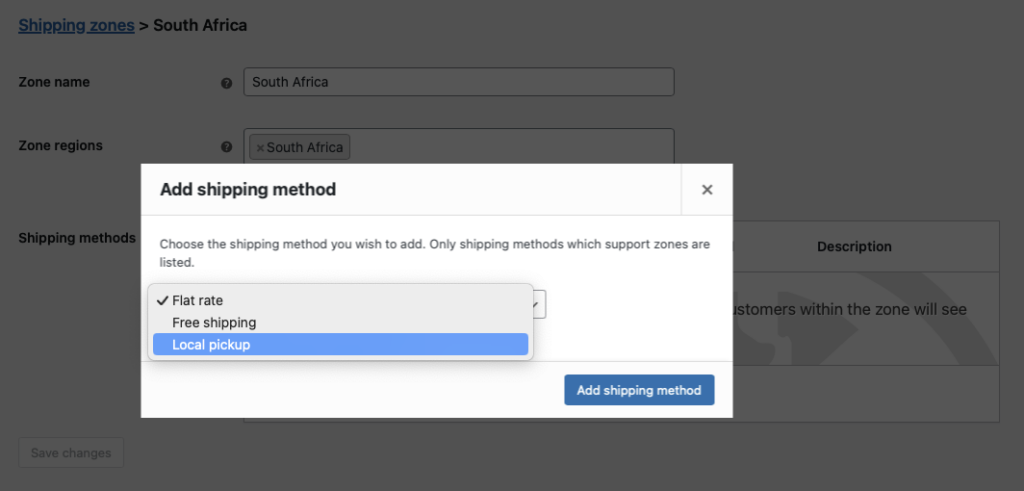
Ermöglichen Sie Ihren Kunden, an der Kasse zwischen Abholung und Lieferung zu wählen, indem Sie WooCommerce-Versandmethoden verwenden:
- Gehen Sie im WordPress-Dashboard zu WooCommerce > Einstellungen > Versand und klicken Sie Versandzone hinzufügen.
- Eingabe einer Zone Name (z. B. “Local Area”) und geben Sie die Region Ihres Restaurants an.
- hinzufügen Lokale Abholung als Versandart für die Abholung in den Filialen.
- Für die Zustellung wählen Sie Kostenloser Versand oder Pauschalpreis (z. B. Umbenennung der Pauschale in “Lokale Zustellung” und Festsetzung einer Gebühr von $5).
5. Benutzerdefinierte Auftragsstatus konfigurieren

Verfolgen Sie den Auftragsfortschritt mit benutzerdefinierten Status mit einem kostenlosen Plugin für benutzerdefinierte Auftragsstatus (z. B. Ni WooCommerce Custom Order Status Plugin). Installieren Sie es und erstellen Sie Status wie:
- Aktiv: Die Bestellung wird in der Küche vorbereitet.
- Bereit: Die Bestellung steht zur Abholung oder Lieferung bereit.
- Vollständig: Der Auftrag ist erfüllt, und es sind keine weiteren Maßnahmen erforderlich.
- Navigieren Sie zu Auftragsstatus > Neu hinzufügen um diese einzurichten.
6. Automatisierte Kunden-E-Mails und SMS einrichten (optional)
Als Nächstes können Sie automatische Aktualisierungen an Ihre Kunden senden, wenn der Bestellstatus geändert wird. AutomateWoo-Plugin Verlängerung. Damit können Sie den Kunden mitteilen, dass die Bestellung zur Abholung bereit ist oder geliefert werden soll.
Wenn ein Auftragsstatus geändert wird, können Sie Folgendes konfigurieren AutomateWoo um eine E-Mail an den Kunden zu senden. Sie können verschiedene E-Mails einrichten, die durch unterschiedliche Auftragsstatus ausgelöst werden, und Sie können auch zusätzliche Regeln anwenden, so dass E-Mails nur gesendet werden, wenn bestimmte Bedingungen erfüllt sind.
Im Folgenden finden Sie einige Beispiele für die Arten der Automatisierung, die Sie mithilfe von Auslösern und Regeln implementieren können:
Bestellung wird vorbereitet E-Mail
Wenn eine Bestellung eingeht, markiert die Küche sie Aktiv um anzuzeigen, dass die Vorbereitung in Ihrem Bestellsystem begonnen hat. konfigurieren AutomateWoo den Kunden per E-Mail über diese Statusänderung zu informieren und ihm zu bestätigen, dass die Küche an seiner Bestellung arbeitet. So werden Erwartungen geweckt und der Kunde über den Fortschritt informiert.

Bestellung bereit zur Abholung E-Mail
Senden Sie diese E-Mail nur für Bestellungen mit lokaler Abholung. Fügen Sie in AutomateWoo eine Regel hinzu, bei der Bestellung → Versandart = Lokale Abholung so dass der Workflow nur in diesen Fällen ausgelöst wird.
Bestellung ist auf dem Weg E-Mail
Diese E-Mail senden nur für Lieferaufträge. Fügen Sie in AutomateWoo eine Regel: Bestellung → Versandart ist Pauschalpreis OR Kostenloser Versand (z. B. “ist eine der folgenden Optionen: Pauschalpreis, kostenloser Versand”).
Dankeschön-E-Mail
Nachdem die Bestellung als abgeschlossen markiert wurde, senden Sie eine Dankes-E-Mail mit einem Gutscheincode, um Wiederholungskäufe zu fördern.
Zeitplan/Planung
In allen obigen Beispielen können Sie die Timing Einstellung auf Sofort ausführen es sei denn, Sie möchten eine leichte Verzögerung einführen, die Ihnen Zeit gibt, eine versandte E-Mail abzubrechen, wenn der Bestellstatus fälschlicherweise geändert wurde.

Aktionen
Für jede E-Mail müssen Sie eine E-Mail oder SMS Textnachricht.
- Öffnen Sie in Ihrem Workflow Aktionen → Aktion hinzufügen.
- Wählen Sie E-Mail senden (oder SMS versenden wenn Sie SMS verwenden).
- Satz An zu
{{ customer.email }}also geht es an den Käufer. - Füllen Sie das Thema und E-Mail-Inhalt (verwenden Sie bei Bedarf Merge-Tags).
- Speichern Sie die Aktion.
Wenn Sie stattdessen eine SMS senden, wählen Sie SMS versenden und konfigurieren Sie den Empfänger/die Nachricht entsprechend Ihren SMS-Einstellungen.
Hier ist ein Beispiel:
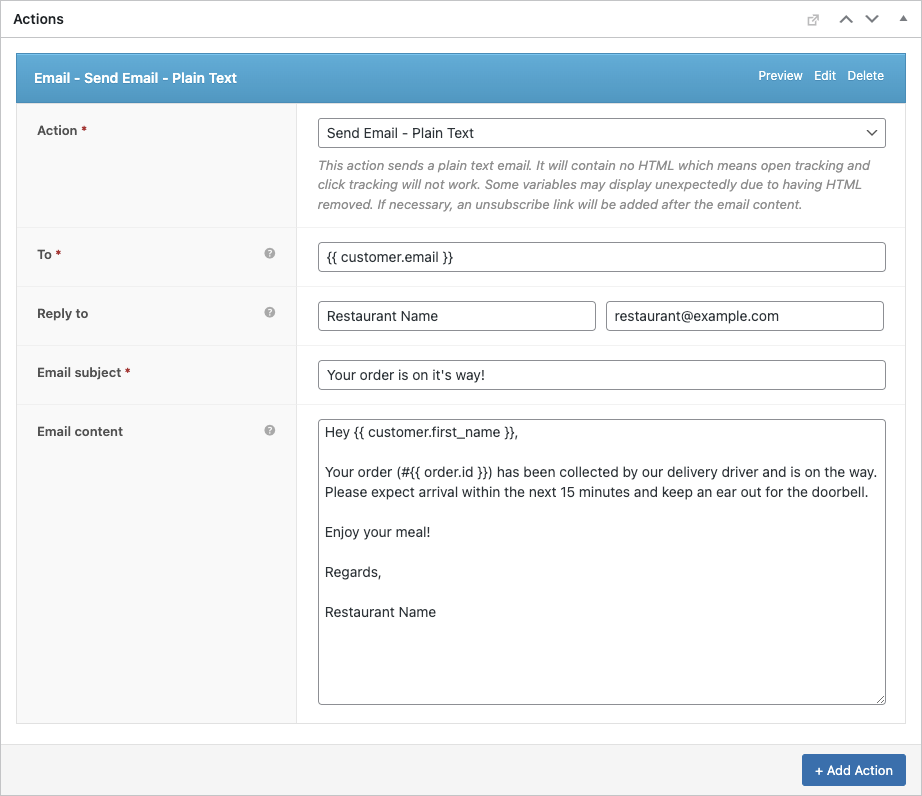
Das spart mit der Zeit unzählige Stunden und minimiert das Fehlerrisiko. Sie können auch konfigurieren AutomateWoo zum Versenden von SMS mit Twilio was eine weitere großartige Eigenschaft dieses Restaurant-Bestellsystem.
6. Einrichten FooSales POS
FooSales funktioniert ohne benutzerdefinierte Konfiguration, Sie müssen jedoch konfigurieren, welche Auftragsstatus FooSales laden soll. öffnen FooSales → Einstellungen → Aufträge und fügen Sie Ihre benutzerdefinierten Status unter Zu ladende Auftragsstati damit sie in den POS-Anwendungen erscheinen. Stellen Sie die Status der Auftragsübermittlung um festzulegen, welcher Status an der Kasse angewendet wird, und zu wählen, welche Status als Unvollständige Auftragsstati.

Sie können dann auch FooSales so einstellen, dass es Folgendes anzeigt Auftragswarnungen basierend auf dem Auftragsstatus oder der Versandmethode, die mit einem Auftrag verbunden sind. Auftragswarnungen stellen sicher, dass das Personal in der Küche oder im Verkaufsraum auf neue Aufträge aufmerksam gemacht wird und diese dank Ihres Systems unverzüglich bearbeiten kann. Restaurant-Bestellsystem.

Das Bestellsystem Ihres Burger-Restaurants
Hier erfahren Sie, wie Sie Online- und persönliche Bestellungen mit Ihrem System verwalten können:
Online-Aufträge
- Wenn ein Kunde online einen individuellen Burger bestellt, erscheint die Bestellung in FooSales POS mit einer Warnmeldung.
- Zeigen Sie die Bestellung im POS an, einschließlich Details wie Toppings (über Product Add-Ons), Bestell-ID, Status, Versandart und Gesamtbetrag.
- Ändern Sie den Status in Aktiv um mit der Vorbereitung zu beginnen, wodurch die E-Mail/SMS “Bestellung wird vorbereitet” ausgelöst wird.
- Das Küchenpersonal kann die Details auf einem Tablet einsehen oder einen Bestellschein mit Hilfe des Thermodruckers von FooSales ausdrucken.
- Aktualisierung auf Bereit nach Fertigstellung die Kunden zur Abholung oder Lieferung benachrichtigen. Bei Lieferungen verwenden die Fahrer die Auftragsdetails für die Abwicklung.
- Eingestellt auf Vollständig sobald der Kunde die Bestellung erhält.
In-House-Bestellungen

- Verwenden Sie FooSales, um persönliche Bestellungen auf dem FooSales POS zu erstellen.
- Suchen Sie nach Produkten (z. B. “Double Cheeseburger”) oder scannen Sie Barcodes, wobei Topping-Anpassungen über WooCommerce Product Add-Ons synchronisiert werden.
- Legen Sie Artikel in den Warenkorb, wenden Sie Rabatte oder Gutscheine an, verknüpfen Sie sie mit einem Kundenprofil, und wählen Sie auf dem Kassenbildschirm Zahlungsmethoden aus.
- Setzen Sie den Auftragsstatus auf Verarbeitung das Küchenpersonal zu benachrichtigen.
- Die Bestellungen werden in WooCommerce gespeichert, und der Bestand wird automatisch aktualisiert.
Anzeigen von Aufträgen

- Online- und persönliche Bestellungen erscheinen im WooCommerce-Dashboard unter Bestellungen und in der Rubrik ’Bestellungen" von FooSales.
- Verwenden Sie WooCommerce-Berichte für Verkaufs- und Bestandsanalysen.
Schlussfolgerung
Durch die Einrichtung eines Bestellsystems mit WordPress, WooCommerce, FooSales und der Erweiterung Product Add-Ons ist Ihr Burger-Restaurant in der Lage, Online-Bestellungen und Bestellungen vor Ort effizient zu bearbeiten. Dieses System rationalisiert die Anpassung, verfolgt Bestellungen und erhöht die Kundenzufriedenheit bei minimalen Kosten. Registrieren Sie sich für eine FooSales kostenlos testen um loszulegen und die Abläufe in Ihrem Restaurant zu optimieren.