


If your WooCommerce store has thousands of products, customers or orders, you’ve probably noticed that the first connection to FooSales can take a while. Depending on how much data you have and the performance and memory of the device you’re using, loading everything up front can also slow the interface down or cause unexpected behaviour.
Starting with FooSales plugin version 1.44.1 and app version 3.2.1, you can switch on dynamic data loading. Instead of downloading your whole store to the device, FooSales fetches customers, products and orders from your server as you search or scan.
How dynamic data loading works
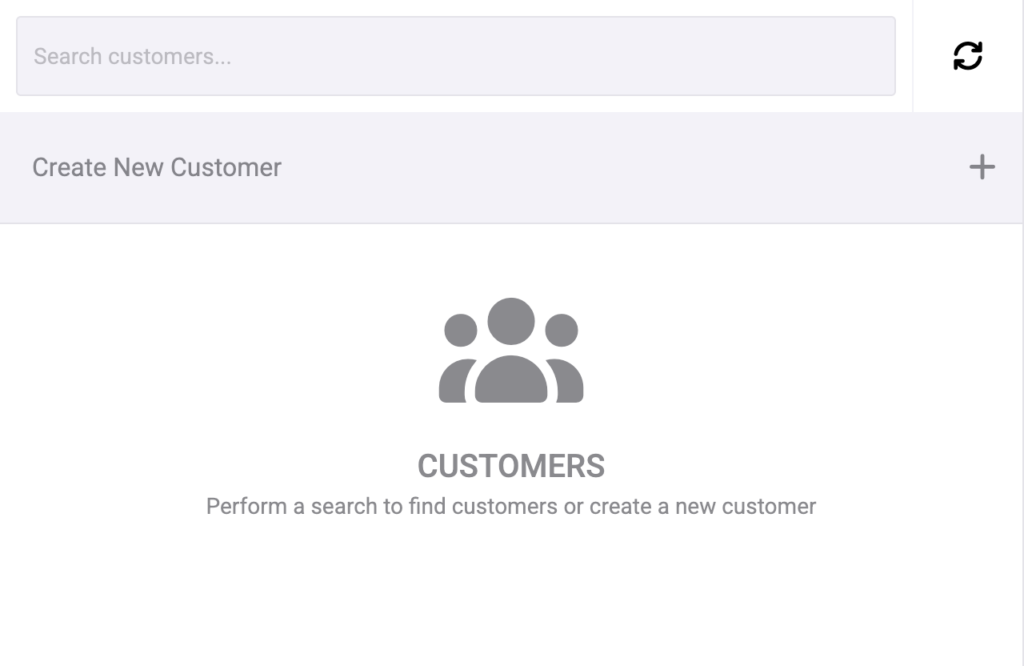
With dynamic loading turned on, the customer, product or order screen starts empty. Search for what you need, or scan a product barcode, and FooSales fetches the matching results from your store.
- Results are fetched in batches of 20.
- Scroll to the bottom of the list and the next batch loads automatically, until every match is shown.
- The device no longer has to download and store your entire catalog, customer list or order history before you can start selling.
Turn it on where your store is large
Dynamic loading is set separately for customers, products and orders, so you only need to use it where you have a lot of data. A store with a modest catalog but tens of thousands of customers might switch it on for customers only.
- In your WordPress admin, open the FooSales plugin settings.
- Go to the Customers, Products or Orders tab.
- Check Enable dynamic loading and save your changes.
- In the FooSales app, go to the Settings screen and tap Clear Cache so the app picks up the new setting.

The setting is currently labelled Beta. If anything doesn’t behave as expected, let us know.
What changes in your settings
Because records are fetched on demand, the Order load limit (Orders tab) and Products to load per request (Products tab) options no longer apply once dynamic loading is on for that tab. Your other filters stay in place, so settings like the user roles to load as customers, the order statuses to load, product categories and product status still decide what can be found in the POS.
Keep your best sellers one tap away with pinned products
With dynamic product loading, the product screen stays empty until you search. For items you ring up all the time, you can pin them so they’re always visible after you’re done searching.
- Edit the product in your WordPress admin and open the POS Settings tab.
- Check Pin this product in the POS and update the product.
- Reload the FooSales app. If the pinned product doesn’t appear, go to Settings in the app and tap Clear Cache.

More ways to speed up a large store
Dynamic loading works well alongside a few existing settings that reduce how much data the app has to handle:
- Load product images (Products tab): turning this off can make products load faster and use less memory.
- Fetch order notes (Orders tab): order notes are fetched with every order, so disabling this helps when you work with a large volume of orders. Notes to customers are still loaded.
- Only fetch in stock products and Only load POS orders: limit what’s loaded to what your staff actually need at the counter.
Get started
Update the FooSales plugin to version 1.44.1 or later and the FooSales app to version 3.2.1 or later, then enable dynamic loading on the tabs that need it. For the full walkthrough, see the dynamic data loading guide in the FooSales Help Center.
New to FooSales? Download the plugin and start your free trial.
 English
 German
 Dutch
 Spanish
 Italian
 Portuguese
 French
 Polish
 Greek